
Topaz · image upscaling

18 models for different jobs.

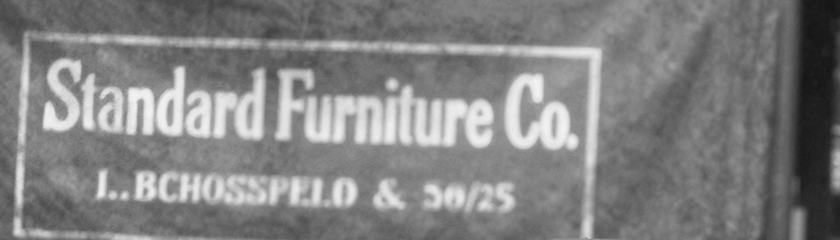
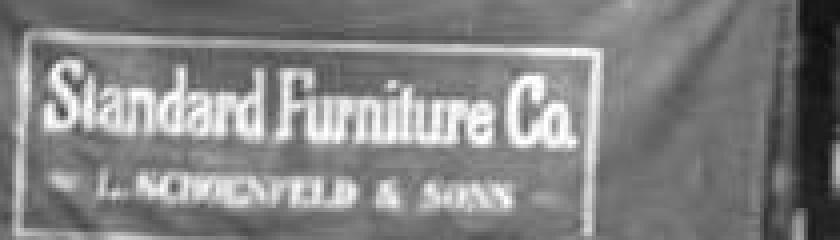
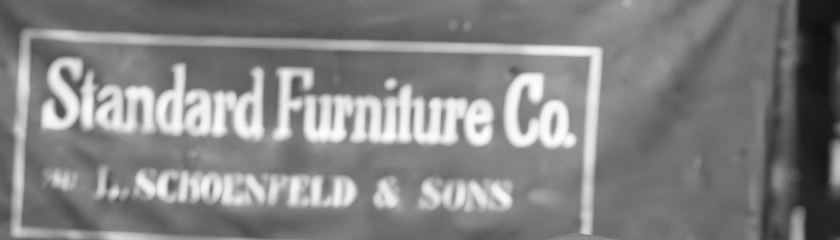
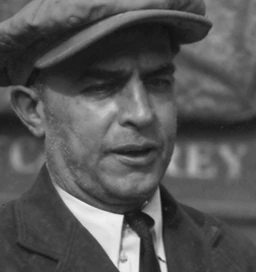
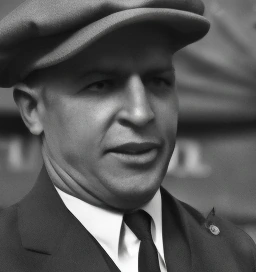
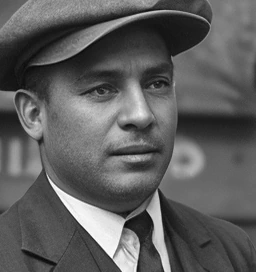
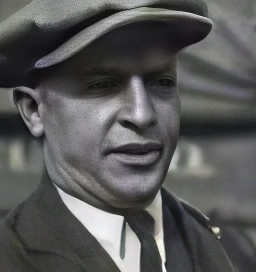
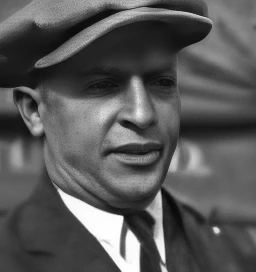
The choice of model changes the result more than the scale factor does. One reads the sign; another invents it. One keeps the face; another draws a different person. The crops below are where that shows.

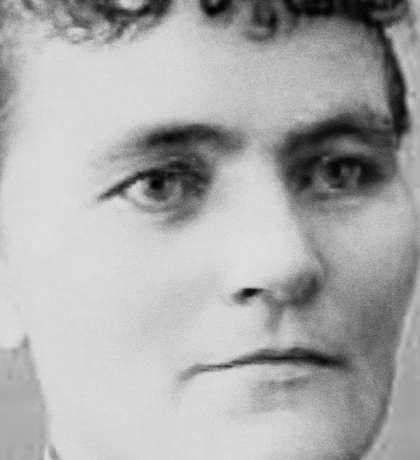
Every crop is cut pixel-for-pixel from the result, with nothing resampled away. All upscales are 4x, and each comparison zooms.

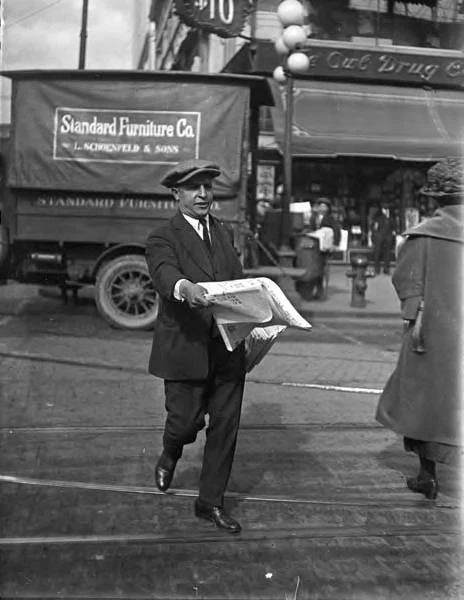
Street photograph, Seattle, 1917

464×600, public domain.

Full frame

The full source frame this crop is taken from
|
Topaz Bloom Realism
Face upscaled 4x with Topaz Bloom Realism, crop at 100%
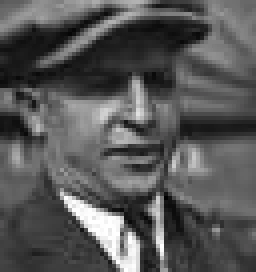
Face, source crop at 100%

Source → 4x · 256×272

Topaz Recover 3
Face upscaled 4x with Topaz Recover 3, crop at 100%
Face, source crop at 100%

Source → 4x · 256×272

Topaz Redefine
Face upscaled 4x with Topaz Redefine, crop at 100%
Face, source crop at 100%

Source → 4x · 256×272

Topaz Standard V2
Face upscaled 4x with Topaz Standard V2, crop at 100%
Face, source crop at 100%

Source → 4x · 256×272

Topaz Text & Shapes
Face upscaled 4x with Topaz Text & Shapes, crop at 100%
Face, source crop at 100%

Source → 4x · 256×272

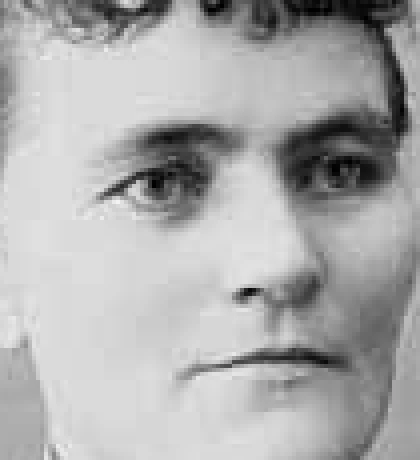
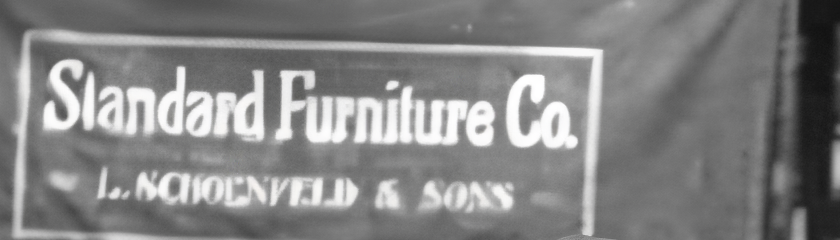
Standard V2, Recover 3 and Text & Shapes keep the same person and the same expression. Redefine and Bloom Realism return two different people — one younger, one older than the original, with different bone structure.

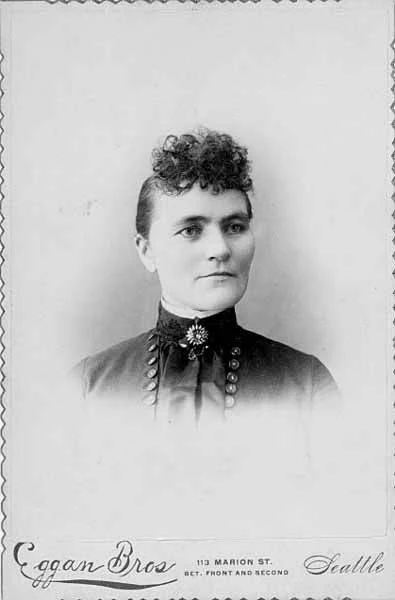
Studio portrait, Eggan Bros, 1891

395×600, public domain, greyscale.

Full frame

The full source frame this crop is taken from
|
Topaz Detail Faces
Face upscaled 4x with Topaz Detail Faces, crop at 100%
Face, source crop at 100%

Source → 4x · 420×460

Topaz Recover 3
Face upscaled 4x with Topaz Recover 3, crop at 100%
Face, source crop at 100%

Source → 4x · 420×460

Topaz Standard V2
Face upscaled 4x with Topaz Standard V2, crop at 100%
Face, source crop at 100%

Source → 4x · 420×460

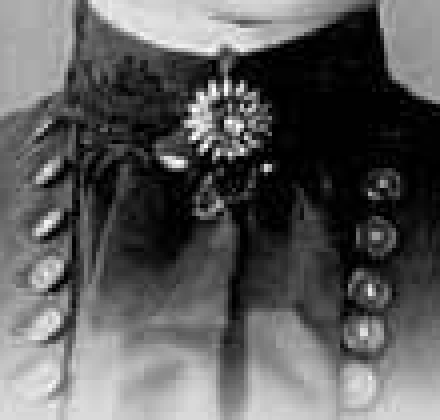
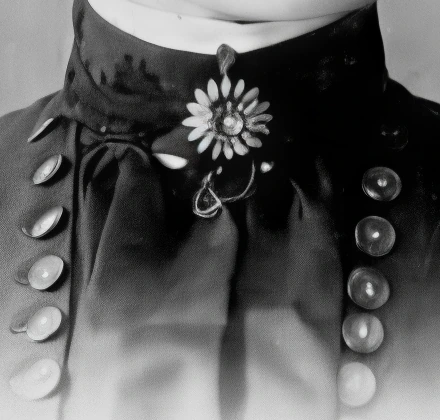
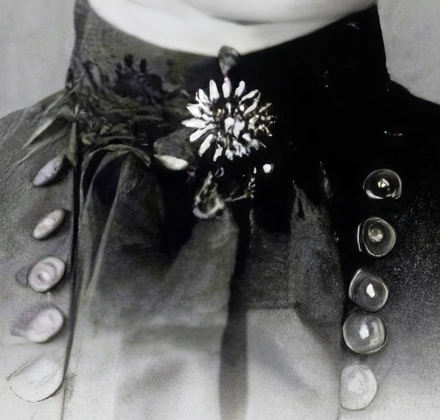
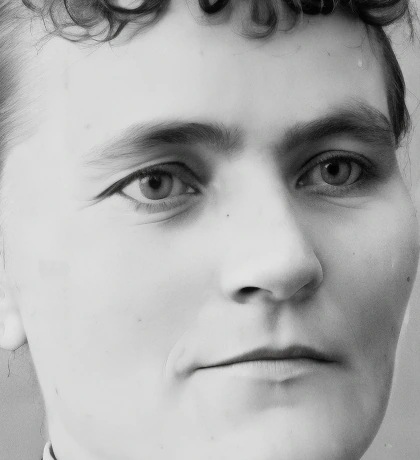
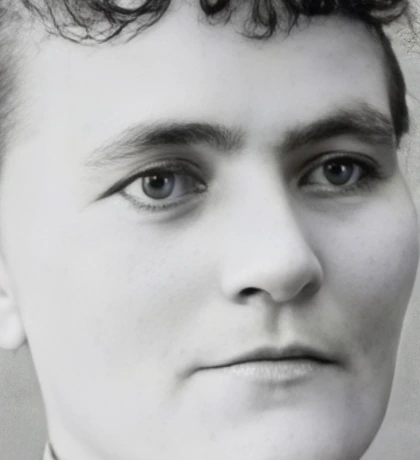
Detail Faces keeps the film grain — the face still reads as a photograph. Standard V2 polishes the skin to plastic. Recover 3 is sharper but smooths the features. One detail matters: only Detail Faces left the shot black and white; the other two quietly converted it to RGB and tinted the skin.

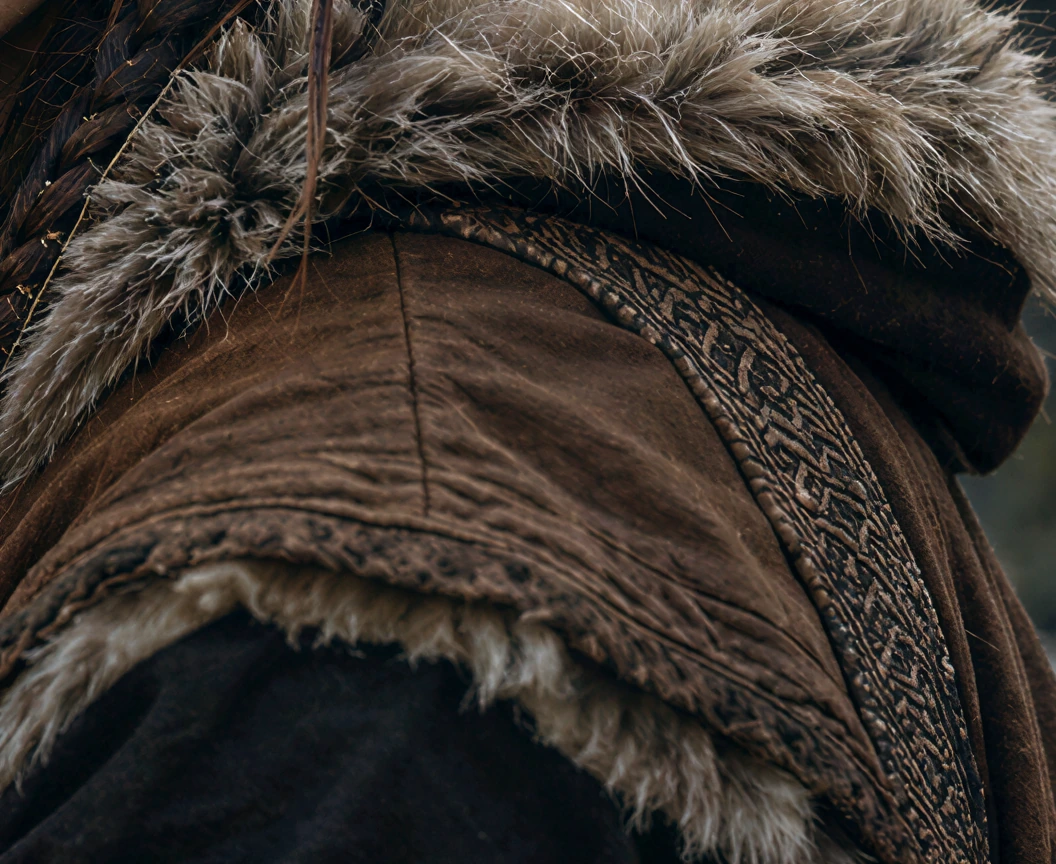
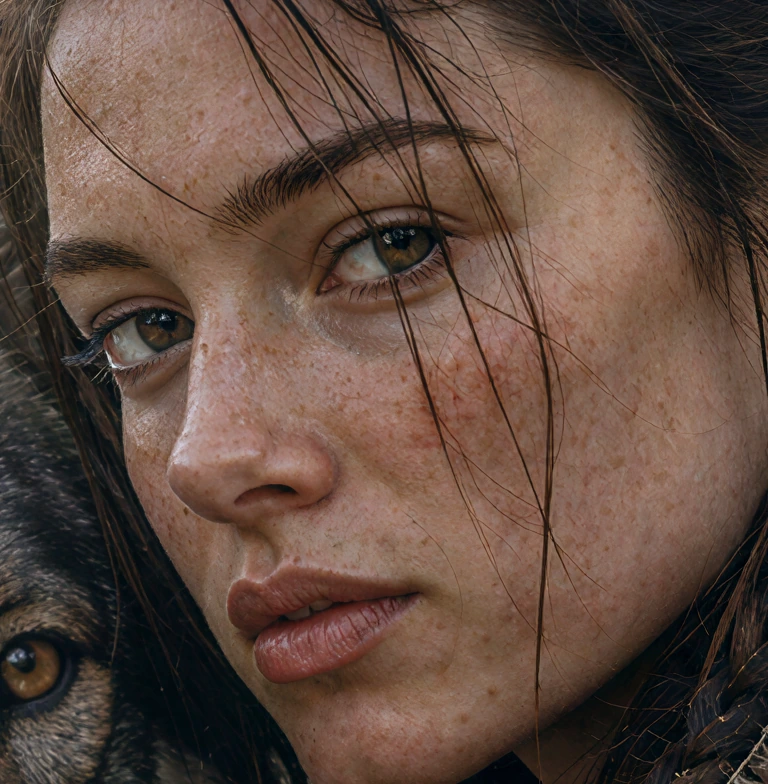
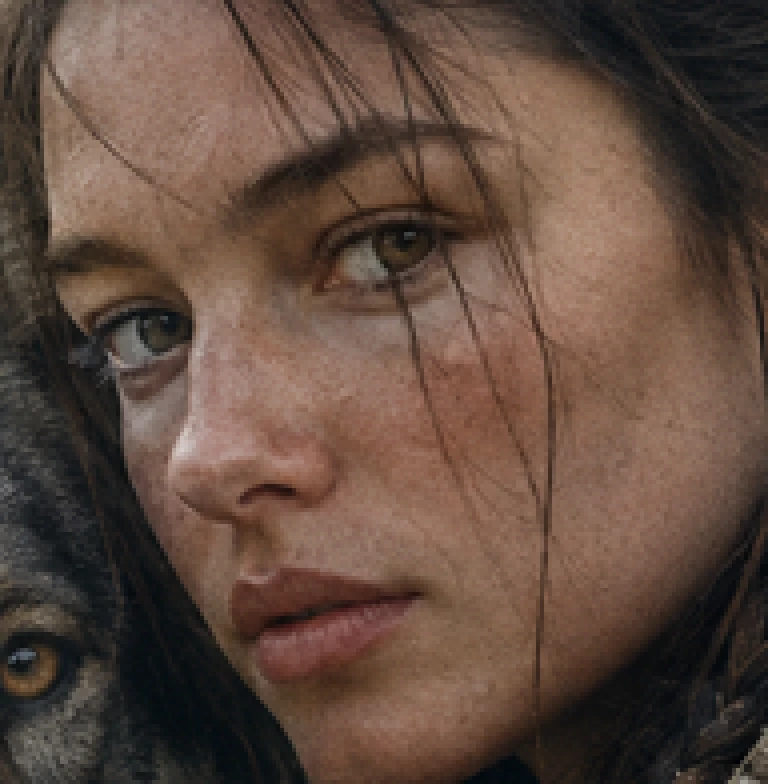
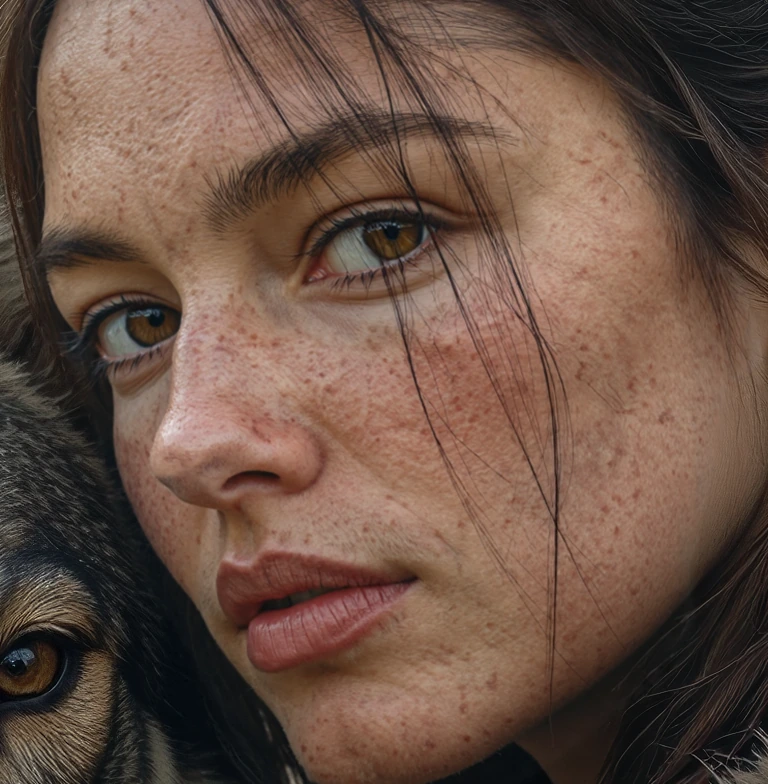
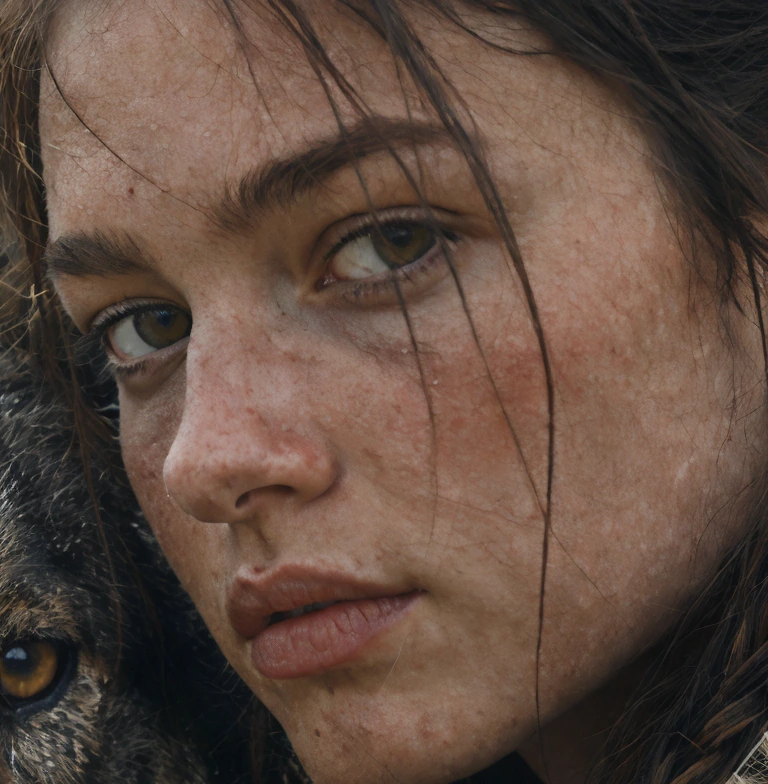
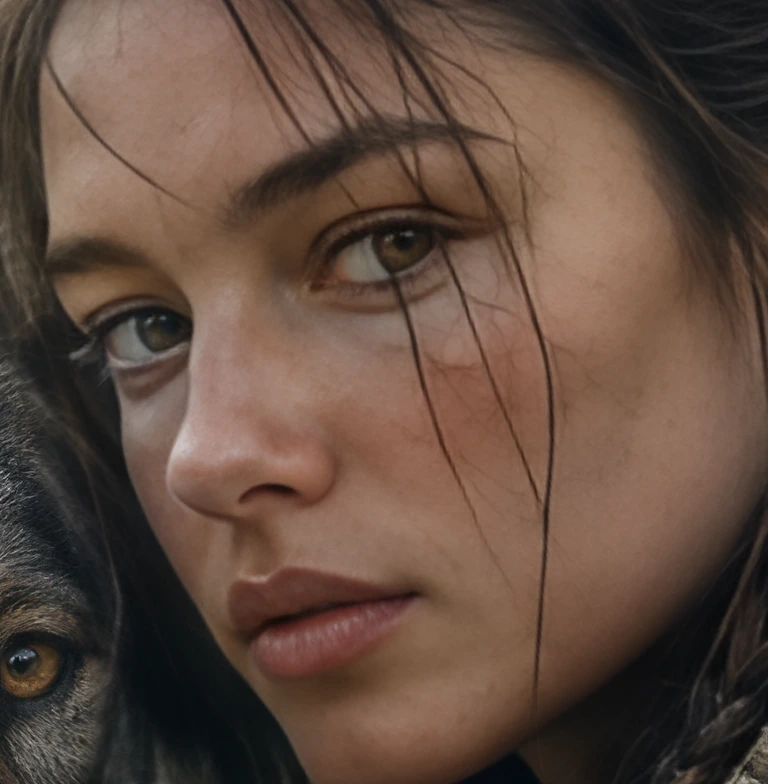
Nordic fantasy portrait

768×512, generated in Omnipix.

Full frame

The full source frame this crop is taken from
||
Topaz Bloom 2
Face upscaled 4x with Topaz Bloom 2, crop at 100%
Face, source crop at 100%

Source → 4x · 768×784

Topaz Bloom Creative
Face upscaled 4x with Topaz Bloom Creative, crop at 100%
Face, source crop at 100%

Source → 4x · 768×784

Topaz Bloom Realism
Face upscaled 4x with Topaz Bloom Realism, crop at 100%
Face, source crop at 100%

Source → 4x · 768×784

Topaz Standard V2
Face upscaled 4x with Topaz Standard V2, crop at 100%
Face, source crop at 100%

Source → 4x · 768×784

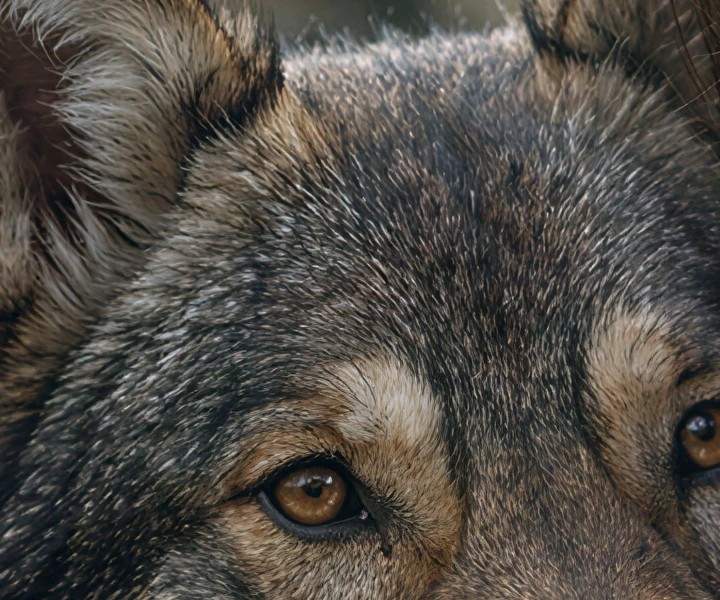
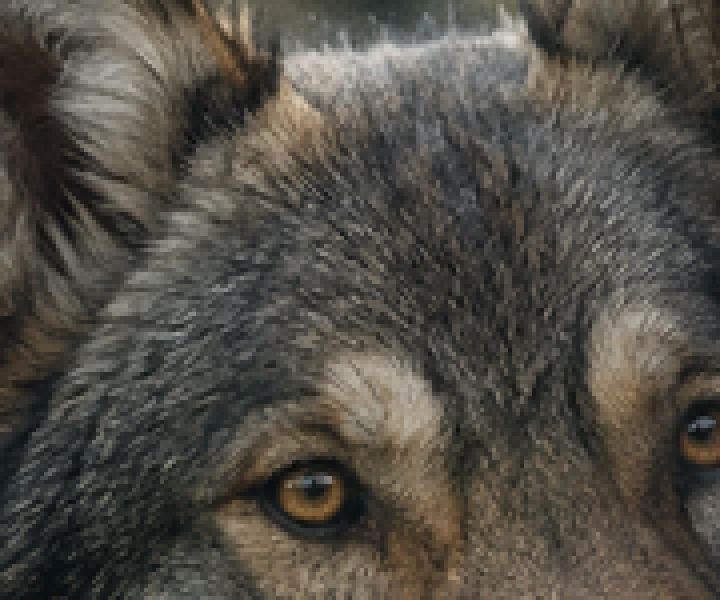
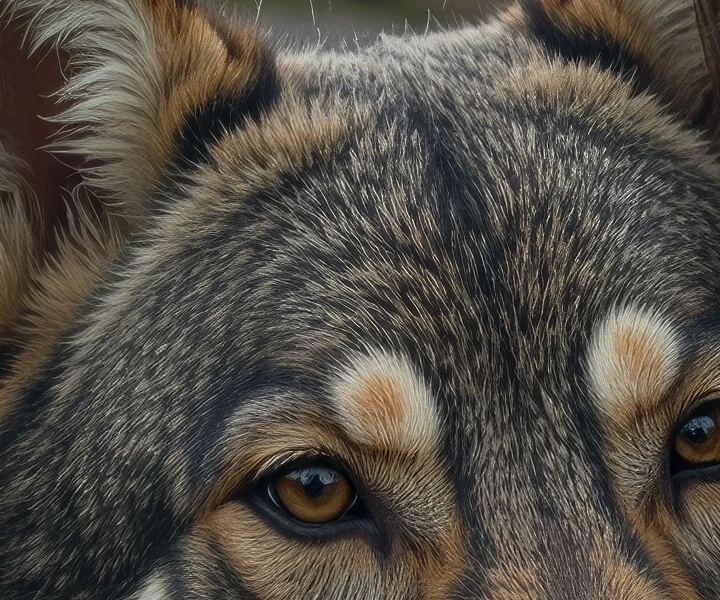
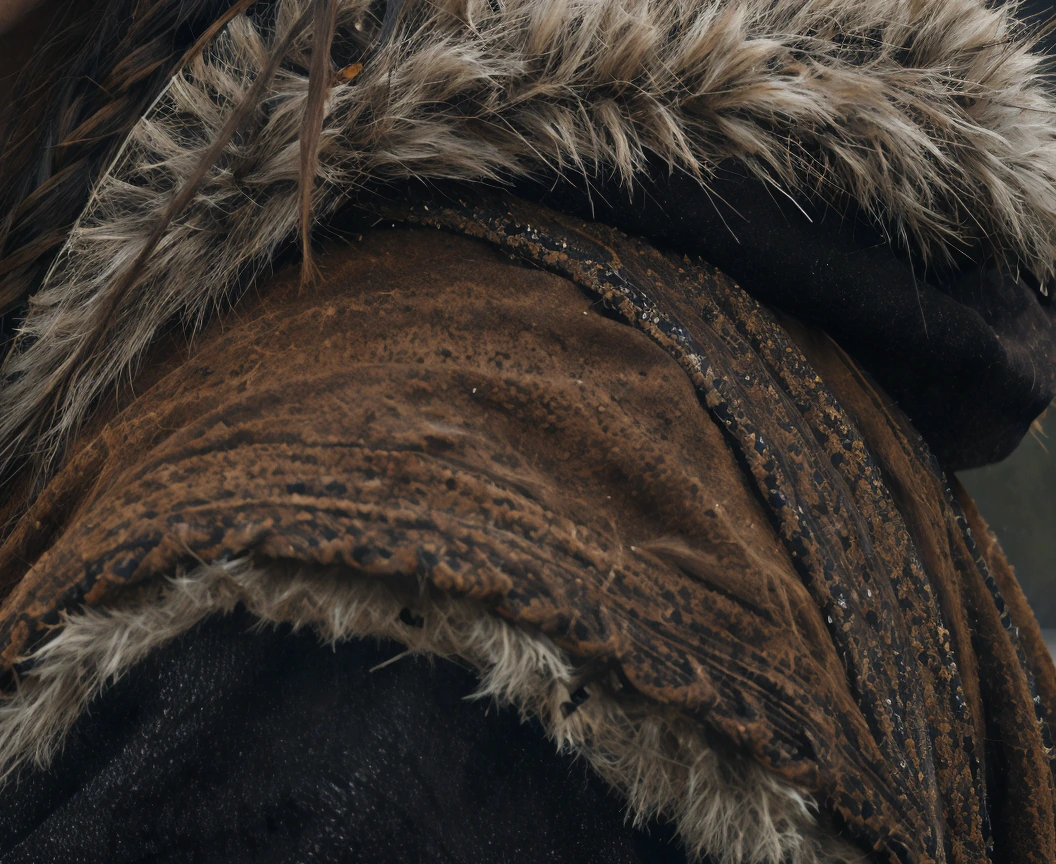
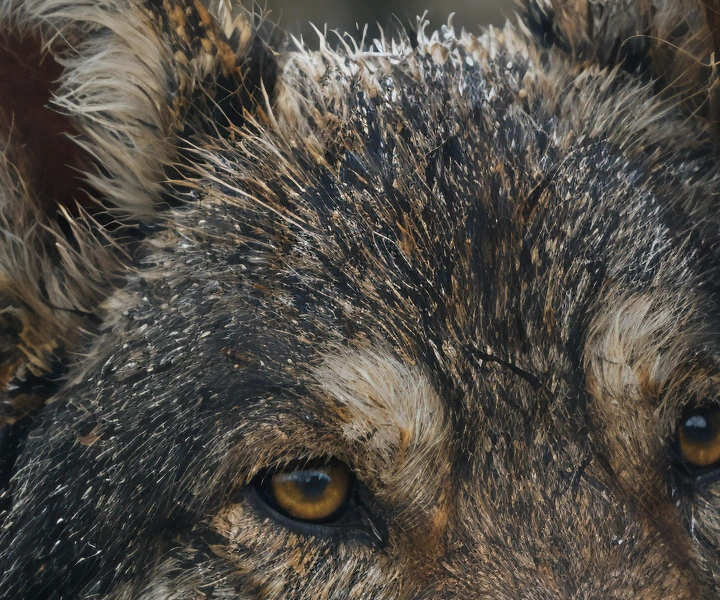
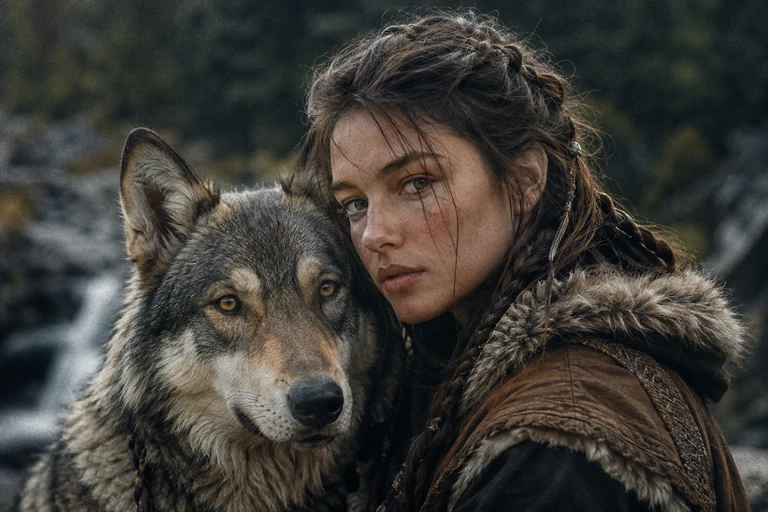
Bloom 2 gives the most texture — freckles, pores, moisture on the skin. Standard V2 erases them. Bloom Creative brightens and adds blush; the face looks retouched. Bloom Realism stays closest to the source in tone — while the same model coarsens the animal’s fur. The choice depends on the material.

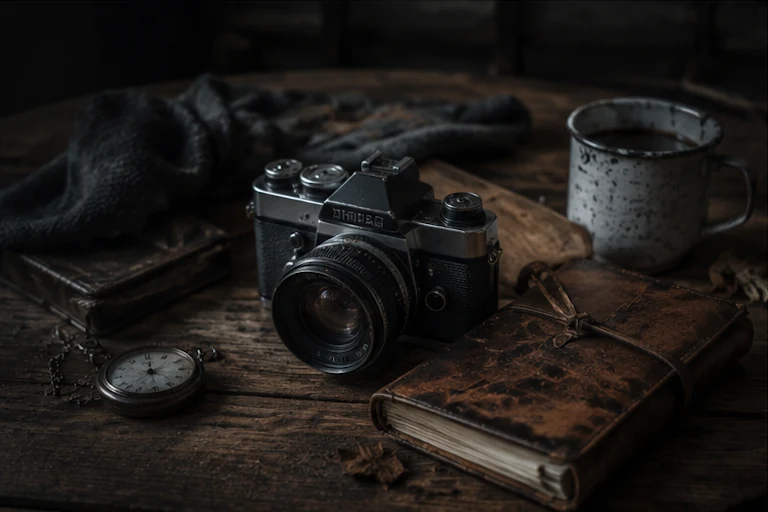
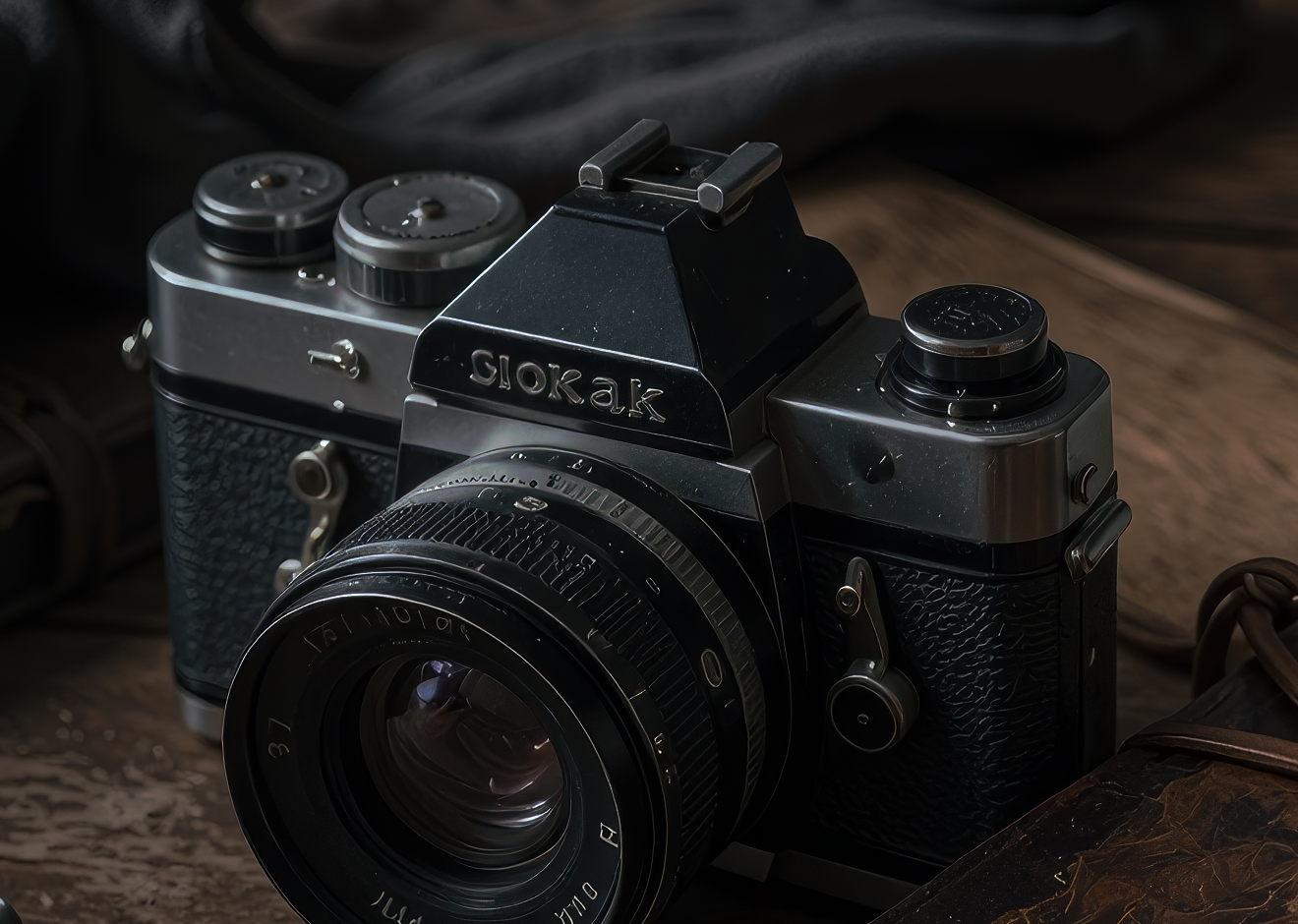
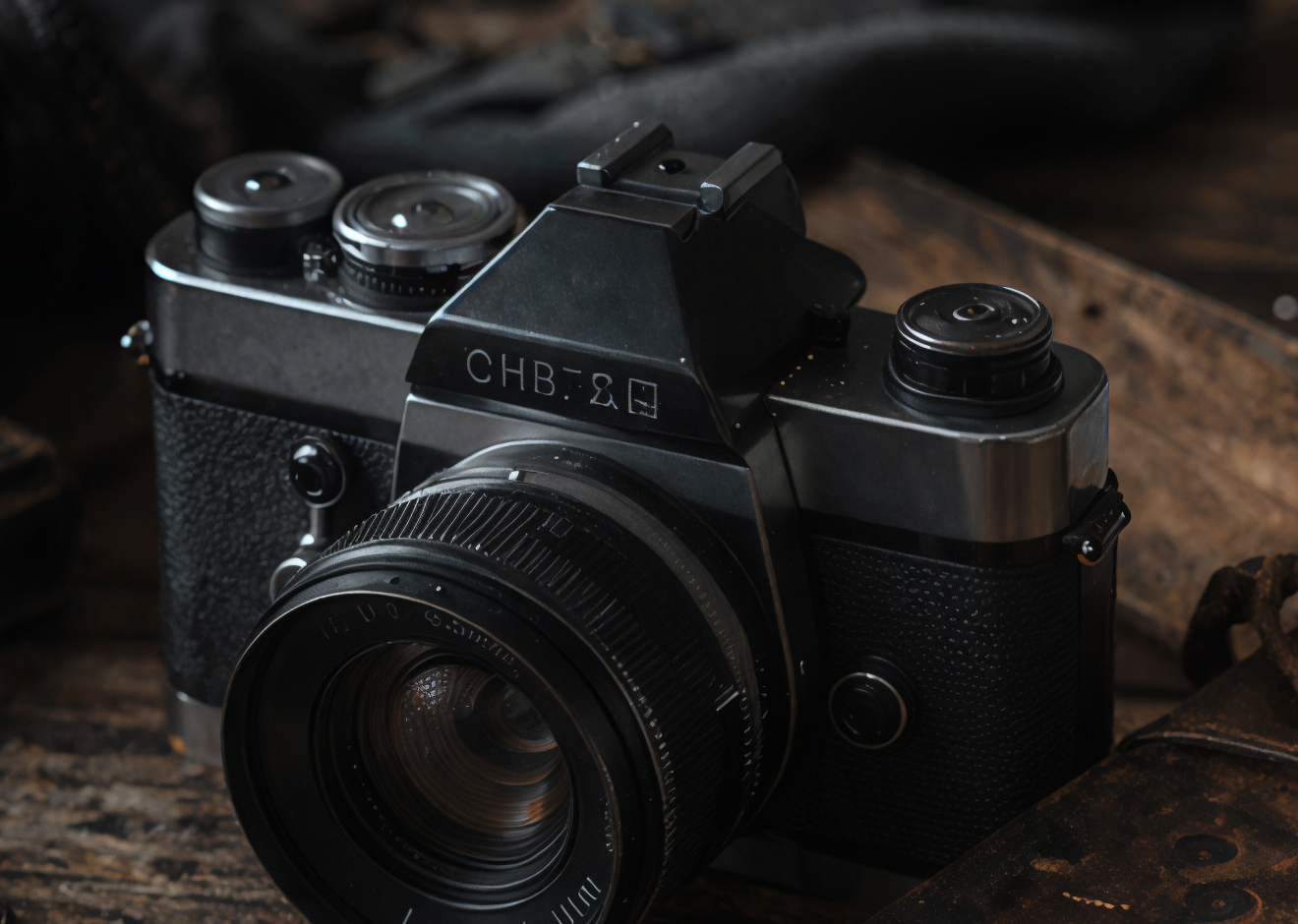
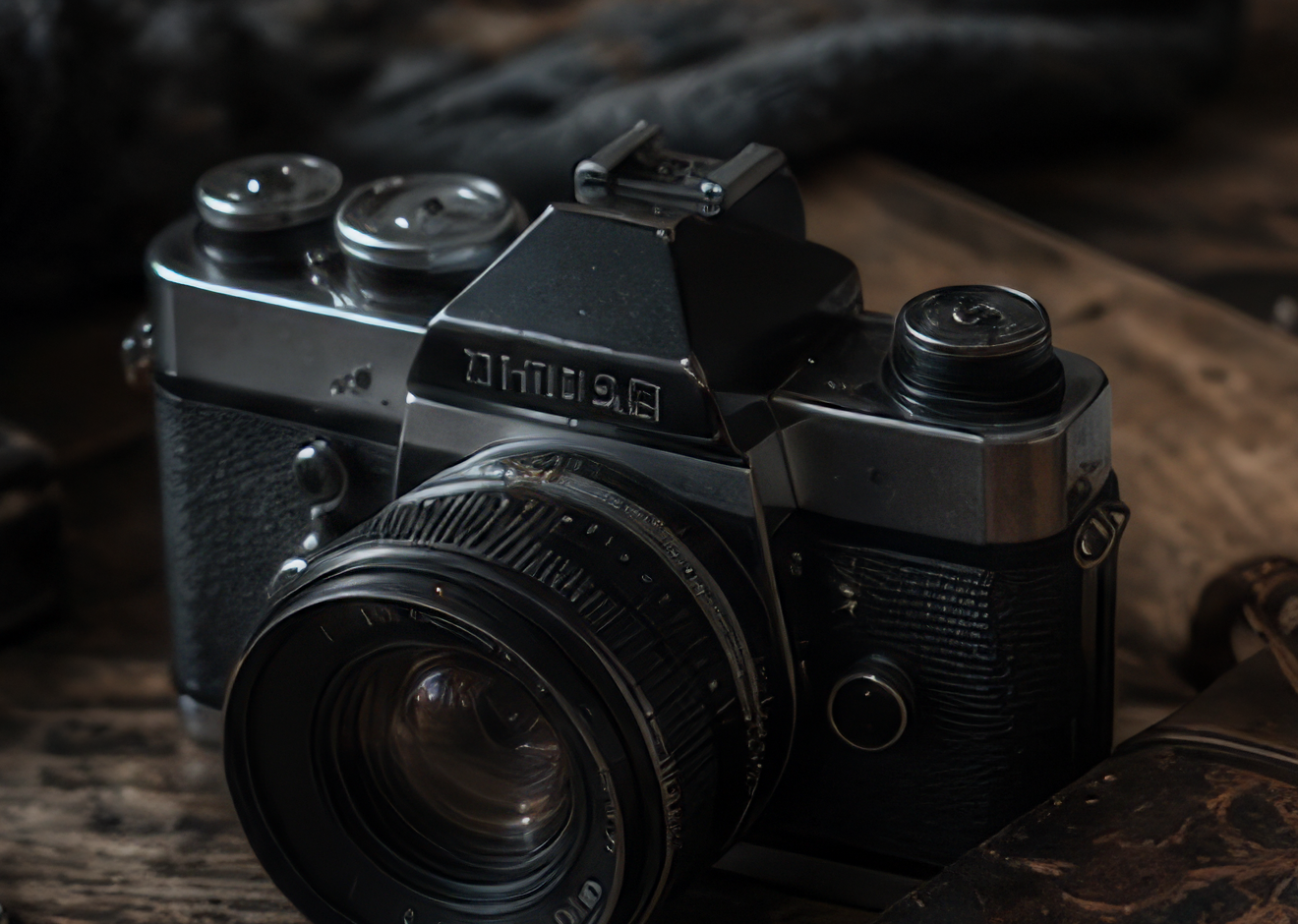
Still life with a film camera

768×512, generated in Omnipix.

Full frame

The full source frame this crop is taken from
|
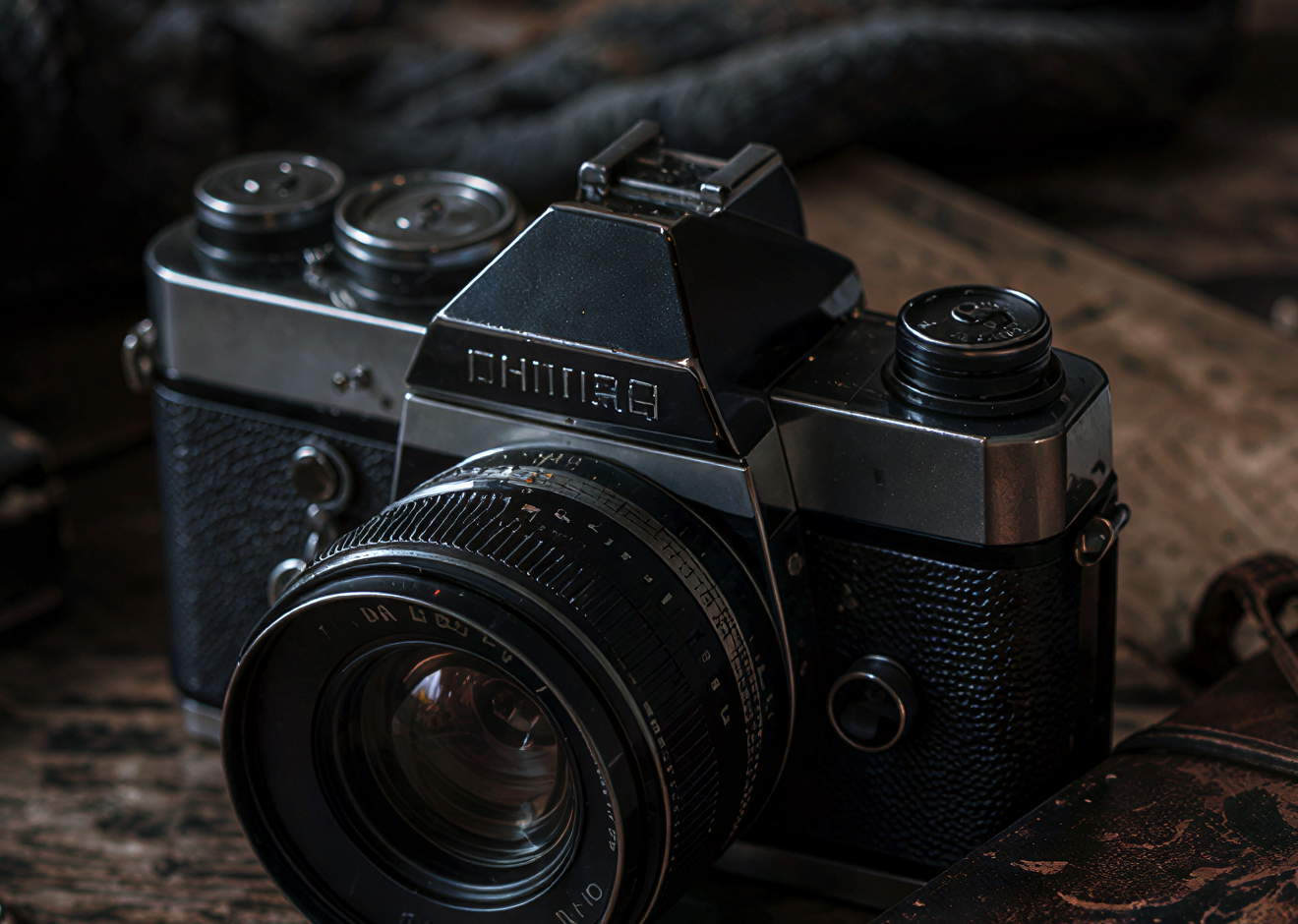
Topaz Bloom 2
The camera upscaled 4x with Topaz Bloom 2, crop at 100%
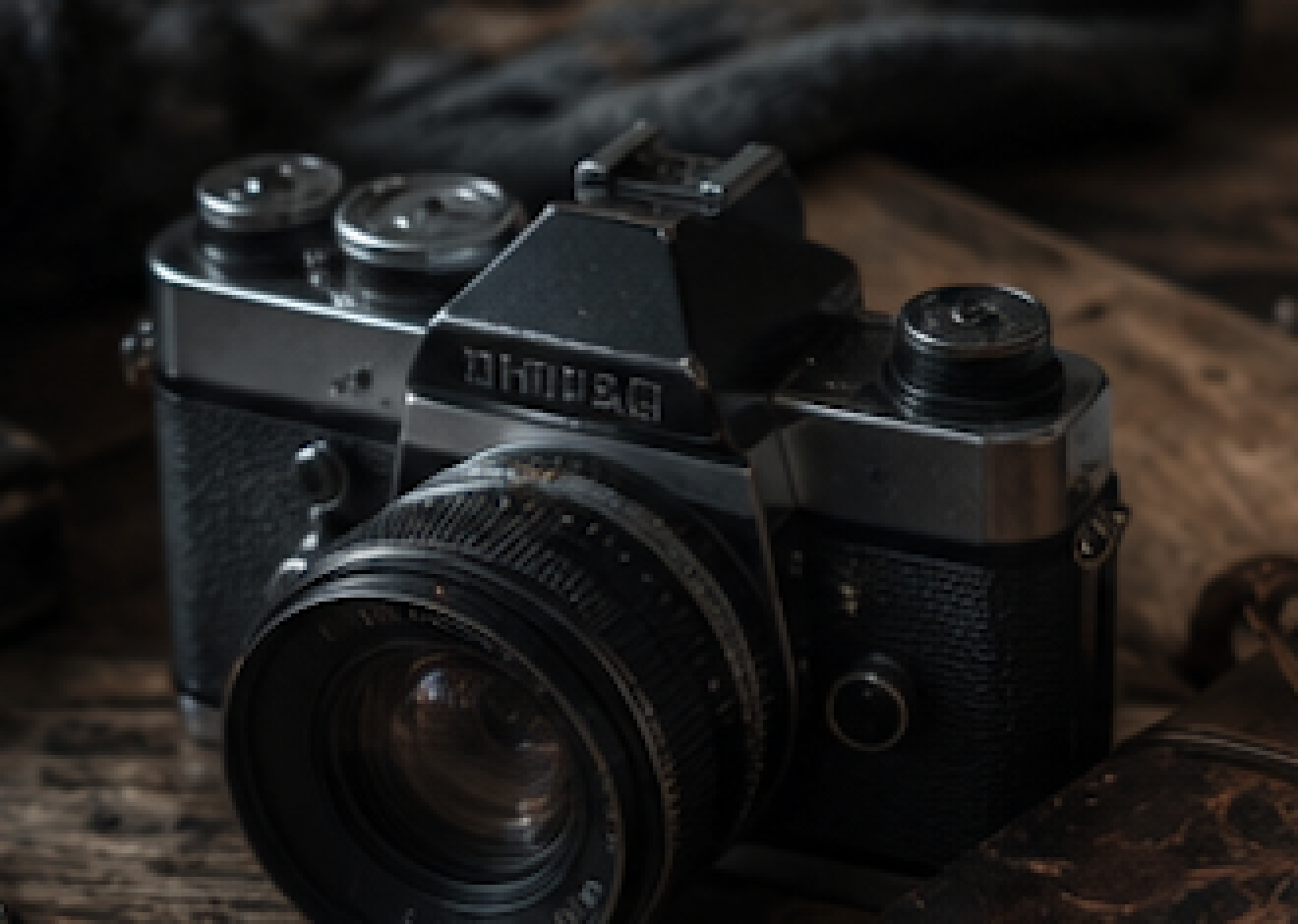
The camera, source crop at 100%

Source → 4x · 1320×940

Topaz Bloom Creative
The camera upscaled 4x with Topaz Bloom Creative, crop at 100%
The camera, source crop at 100%

Source → 4x · 1320×940

Topaz Bloom Realism
The camera upscaled 4x with Topaz Bloom Realism, crop at 100%
The camera, source crop at 100%

Source → 4x · 1320×940

Topaz Standard V2
The camera upscaled 4x with Topaz Standard V2, crop at 100%
The camera, source crop at 100%

Source → 4x · 1320×940

Bloom 2 separates the scale marks on the lens and the grain of the leatherette — Standard V2 smooths them away. On the nameplate the models diverge further: Standard V2 and Bloom 2 leave the lettering as it is, Bloom Realism writes “CHB 2”, and Bloom Creative invents a plausible “SloKak” while rebuilding the body — the pentaprism grows taller and squarer, turning the camera into a different model.

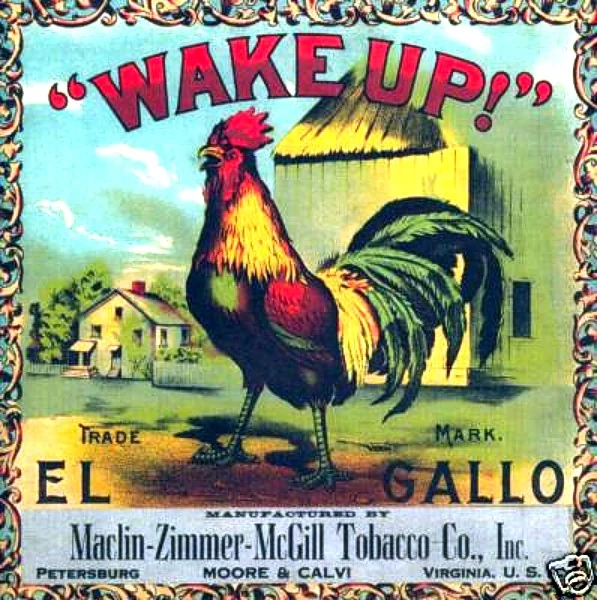
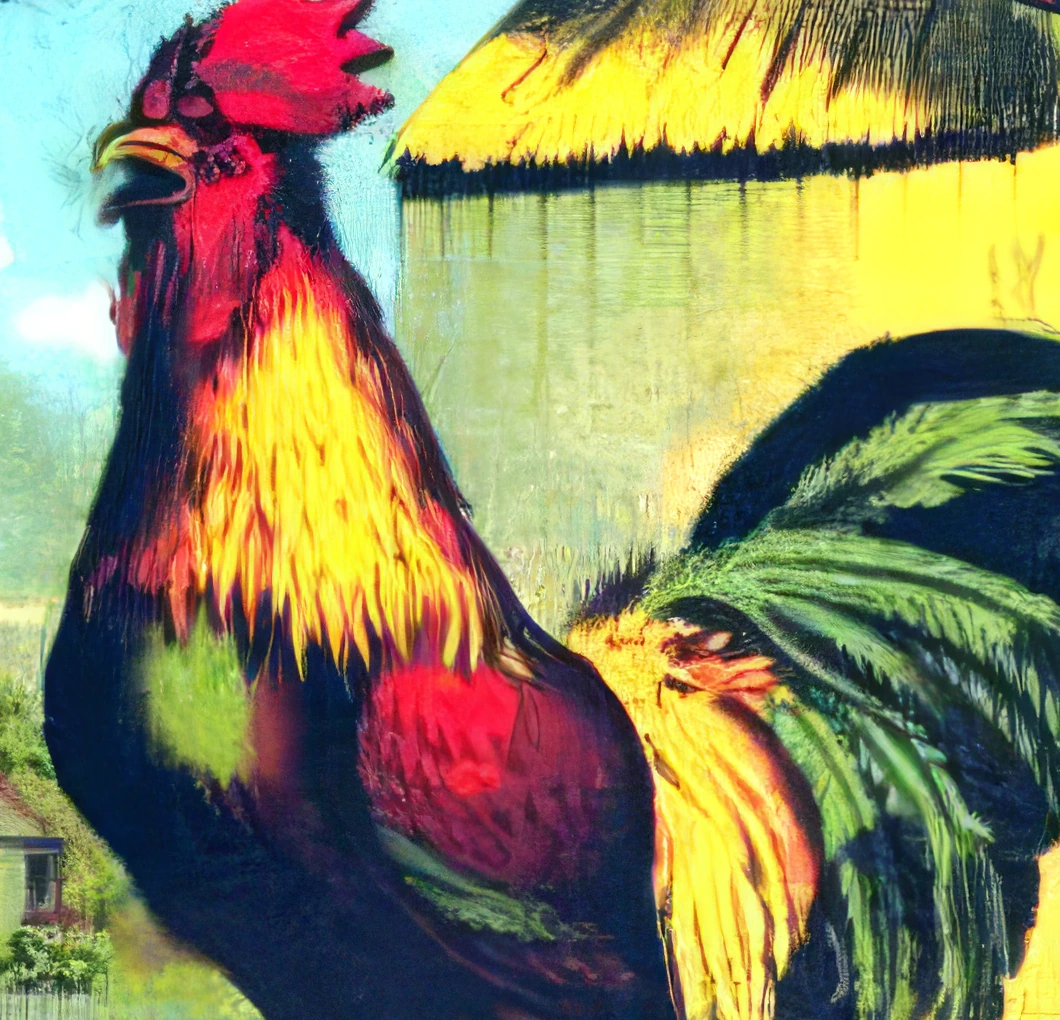
Cigar label, chromolithograph, 1890

597×600, public domain.

Full frame

The full source frame this crop is taken from
|
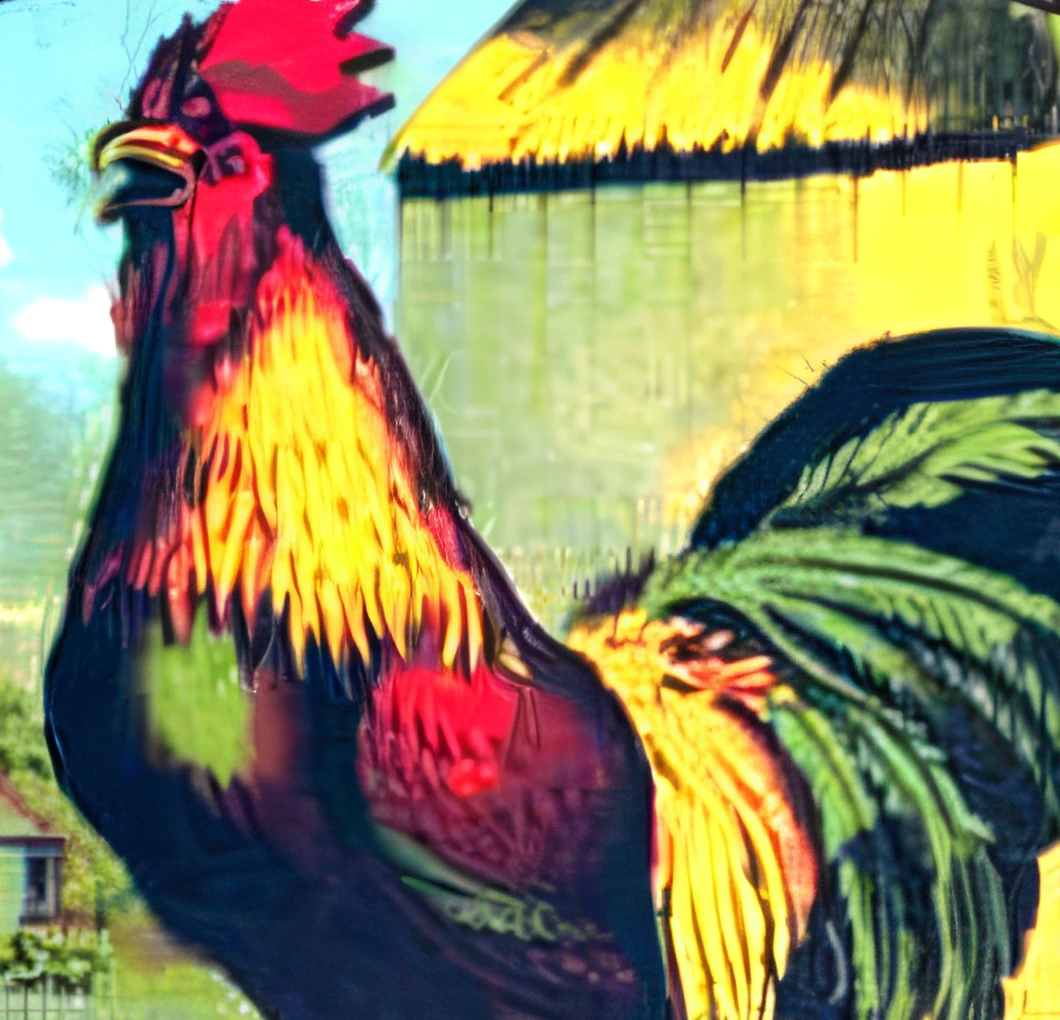
Topaz Art & CGI
The rooster upscaled 4x with Topaz Art & CGI, crop at 100%
The rooster, source crop at 100%

Source → 4x · 1060×1020

Topaz Standard V2
The rooster upscaled 4x with Topaz Standard V2, crop at 100%
The rooster, source crop at 100%

Source → 4x · 1060×1020

Topaz Text & Shapes
The rooster upscaled 4x with Topaz Text & Shapes, crop at 100%
The rooster, source crop at 100%

Source → 4x · 1060×1020

Standard V2 photographises the drawing: the feathers gain false volume and the straw hazes over. Text & Shapes overdoes the outline. Art & CGI is the most even — flat fills stay flat and the hatching stays separated.

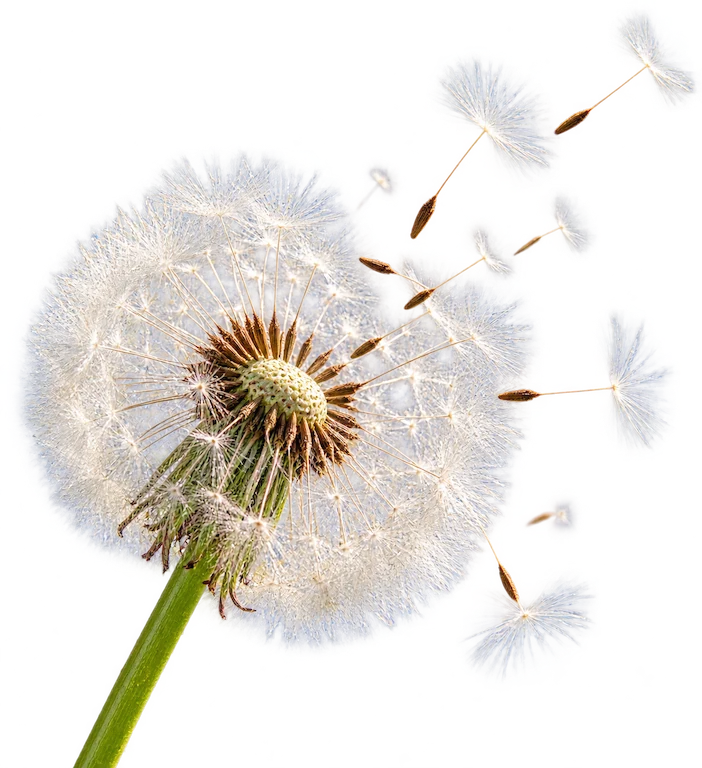
Dandelion, PNG with transparency

702×768, generated in Omnipix.

Full frame

The full source frame this crop is taken from

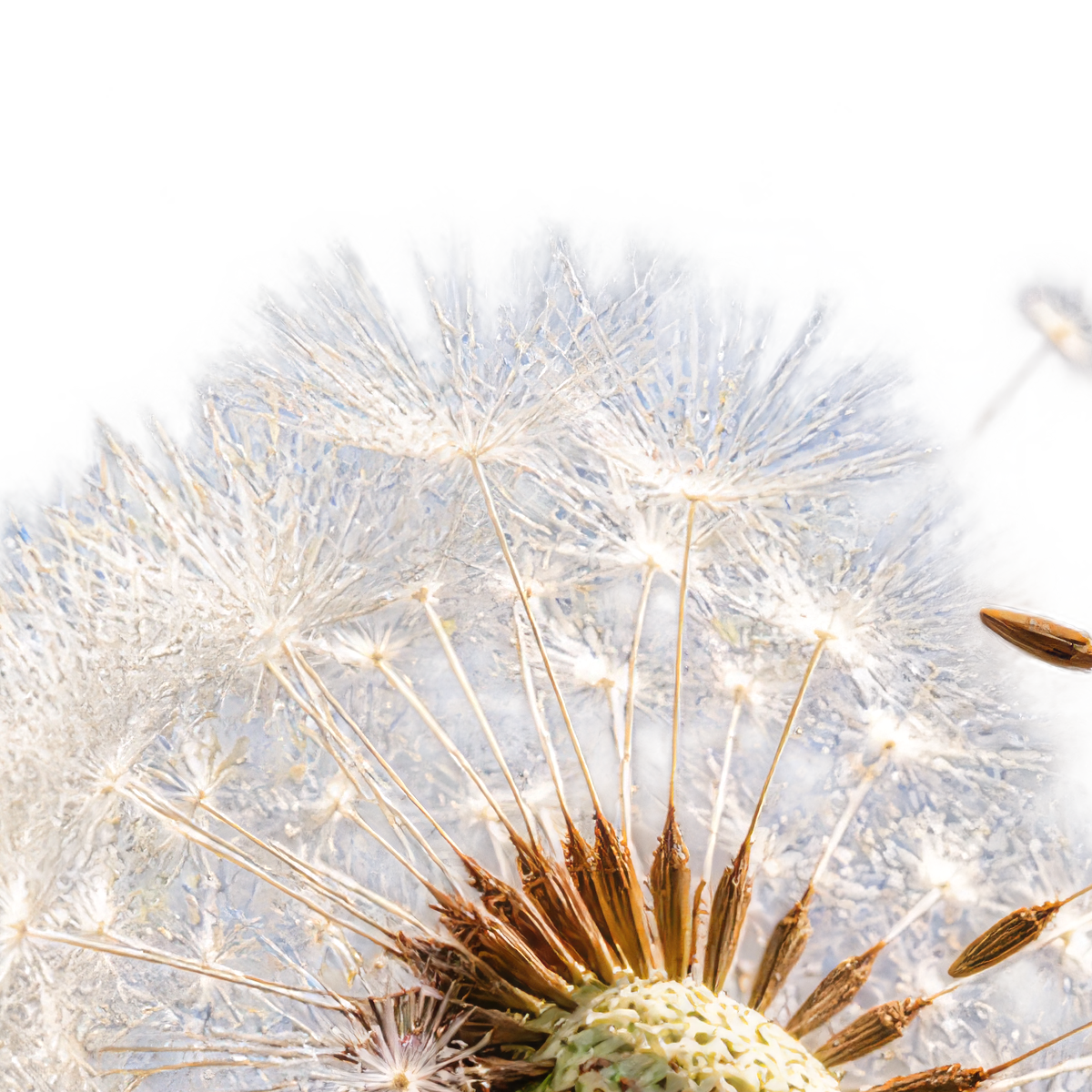
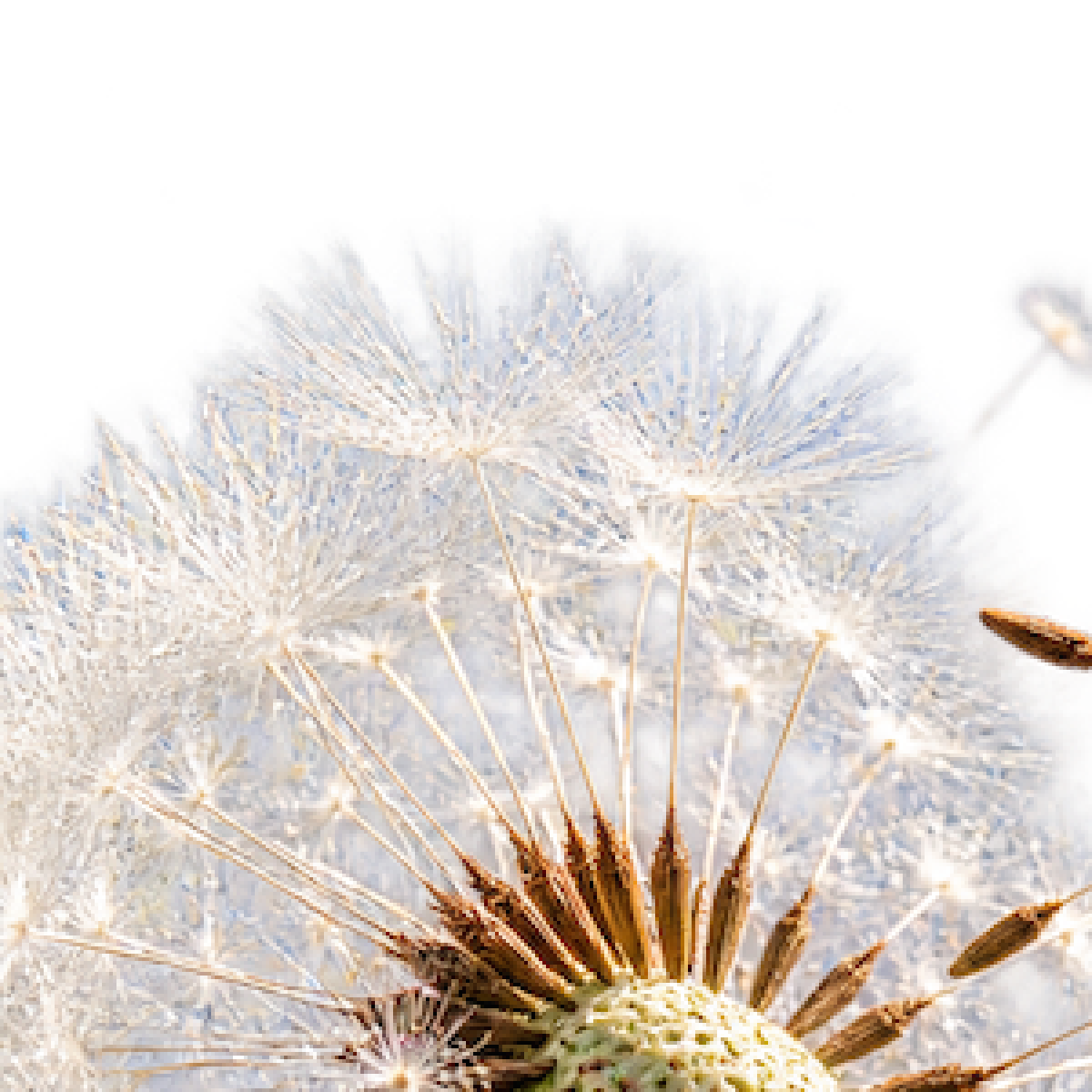
Edge of the pappus

Topaz Standard V2
Edge of the pappus upscaled 4x with Topaz Standard V2, crop at 100%
Edge of the pappus, source crop at 100%

Source → 4x · 1200×1200

Topaz Transparent Image Upscale
Edge of the pappus upscaled 4x with Topaz Transparent Image Upscale, crop at 100%
Edge of the pappus, source crop at 100%

Source → 4x · 1200×1200

Transparency Upscale separates the merged filaments: real transparency appears between the parachutes. Standard V2 keeps the murky haze of the source. The specialised model earns its place where semi-transparent elements overlap; on large, already-separated alpha the two produce the same thing.

The family

Every upscaling model

The comparisons above do not cover the whole family: some models answer needs these six sources never raise. The full list is below; the price follows the resolution of the result and is billed per megapixel.

Topaz Art & CGIAvailable

Topaz Art & CGI

Art & CGI is tailored for non-photographic imagery such as illustrations, digital art, renders, and stylized graphics. It preserves clean edges, flat color regions, and intentional line work without introducing photographic texture.

Properties

  • Supports Image Upscale workflows.

Best for

  • Illustrations, digital art, and CGI
  • Preserving clean edges and flat color areas
  • Avoiding unwanted photographic texture or noise

Tips

  • Precision upscaling for artwork, drawings, illustrations, and computer graphics

How to use this model

  1. 1

    Upload the source media at the best quality available.

  2. 2

    Choose the restoration or enhancement variant that matches the defect.

  3. 3

    Compare the output at full size and reduce strength if natural detail is lost.

Examples
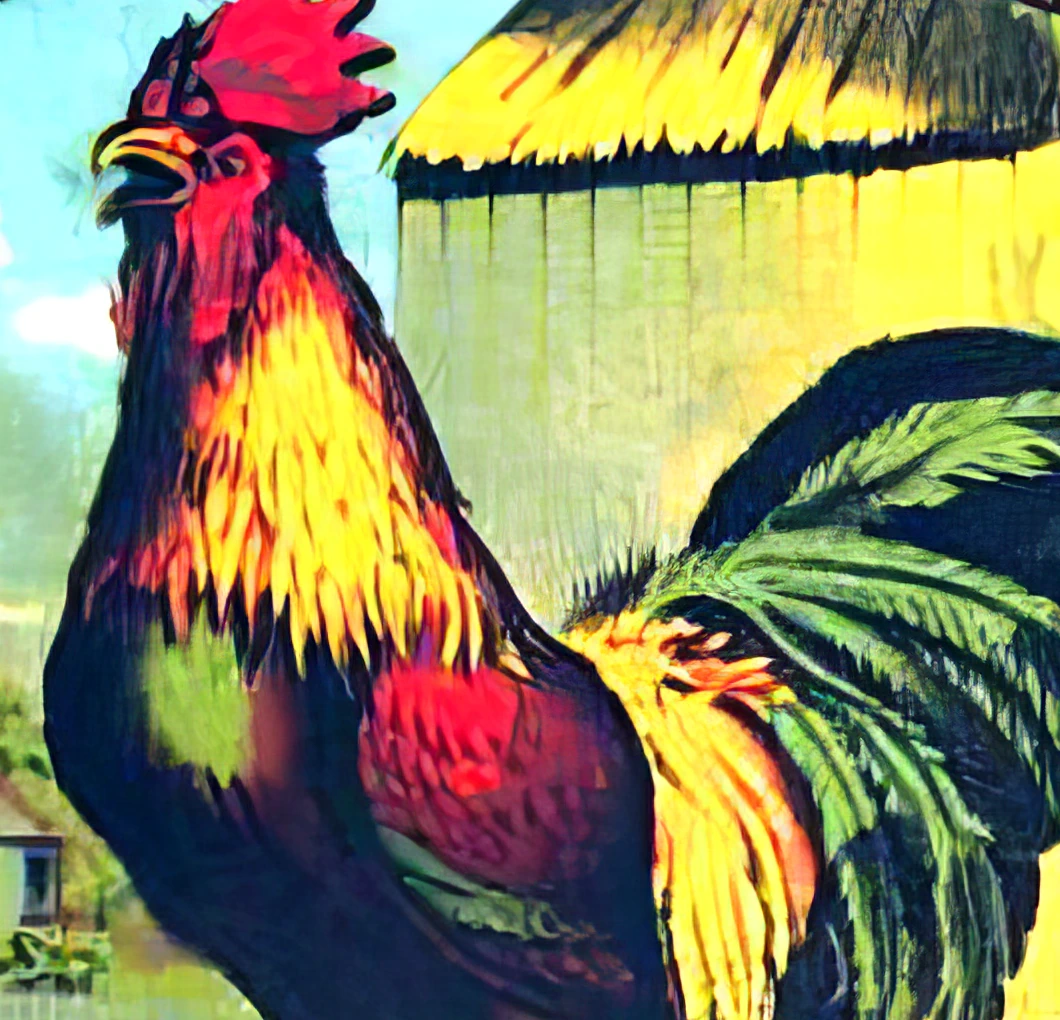
The rooster upscaled 4x with Topaz Art & CGI, crop at 100%
The rooster, source crop at 100%
100%

Reference

The full source frame this crop is taken from
Bottom line upscaled 4x with Topaz Art & CGI, crop at 100%
Bottom line, source crop at 100%
100%

Reference

The full source frame this crop is taken from

Parameters

Deblur Strength

Optional

Adjusts the strength of the deblur.

Face Enhancement

Optional

Leverages face recovery model to enhance faces.

Face Enhancement Strength

Optional

Sets the strength of the face recovery. Required if face_enhancement=true.

Face Enhancement Creativity

Optional

Choose realistic or creative face recovery. Required if face_enhancement=true.

Subject Detection

Optional

Sets the subject detection mode.

  • foreground

  • background

  • all

Sharpen

Optional

Slightly sharpens the image.

Denoise

Optional

Reduces noise in the image.

Fix Compression

Optional

Reduces compression artifacts to improve details.

Strength

Optional

Controls model strength. Too high of a result can make results look unrealistic.

Output Format

Optional

The desired format of the output image.

  • jpg

  • png

  • tif

Height

Optional

The desired height of the output image in pixels. Your image will automatically be upscaled to this specified value. If only one of `output_height` and `output_width` is set, then the other dimension is scaled proportionally.

Width

Optional

The desired width of the output image in pixels. Your image will automatically be upscaled to this specified value. If only one of `output_height` and `output_width` is set, then the other dimension is scaled proportionally.

Crop To Fill

Optional

Default behavior is to letterbox the image if a differing aspect ratio is chosen. Enable `crop_to_fill` by setting this to `true` if you instead want to crop the image to fill the dimensions.

Scale Factor

Required

Scale factor to use for enhancing the image. Custom requires either width or height to be set.

  • 2x

  • 3x

  • 4x

  • custom

Image

Required

Source image

Topaz Bloom 2Available

Topaz Bloom 2

Bloom 2 creatively upscales AI-generated art, illustrations, and CG renders with controls for creativity, texture, grain, and color preservation. It is designed for sources where tasteful reinterpretation is acceptable; logos, lettering, precise geometry, and identity-critical details still require close inspection.

Properties

  • Supports Image Upscale workflows.

Best for

  • Built for native GenAI imagery or artwork that needs creative enhancement
  • Prompt-based guidance controls style, texture, and creative direction
  • Scalable creativity enables subtle enhancement or bold transformation

Tips

  • Creative upscaling for AI generated images and artwork

How to use this model

  1. 1

    Upload the source media at the best quality available.

  2. 2

    Choose the restoration or enhancement variant that matches the defect.

  3. 3

    Compare the output at full size and reduce strength if natural detail is lost.

Examples
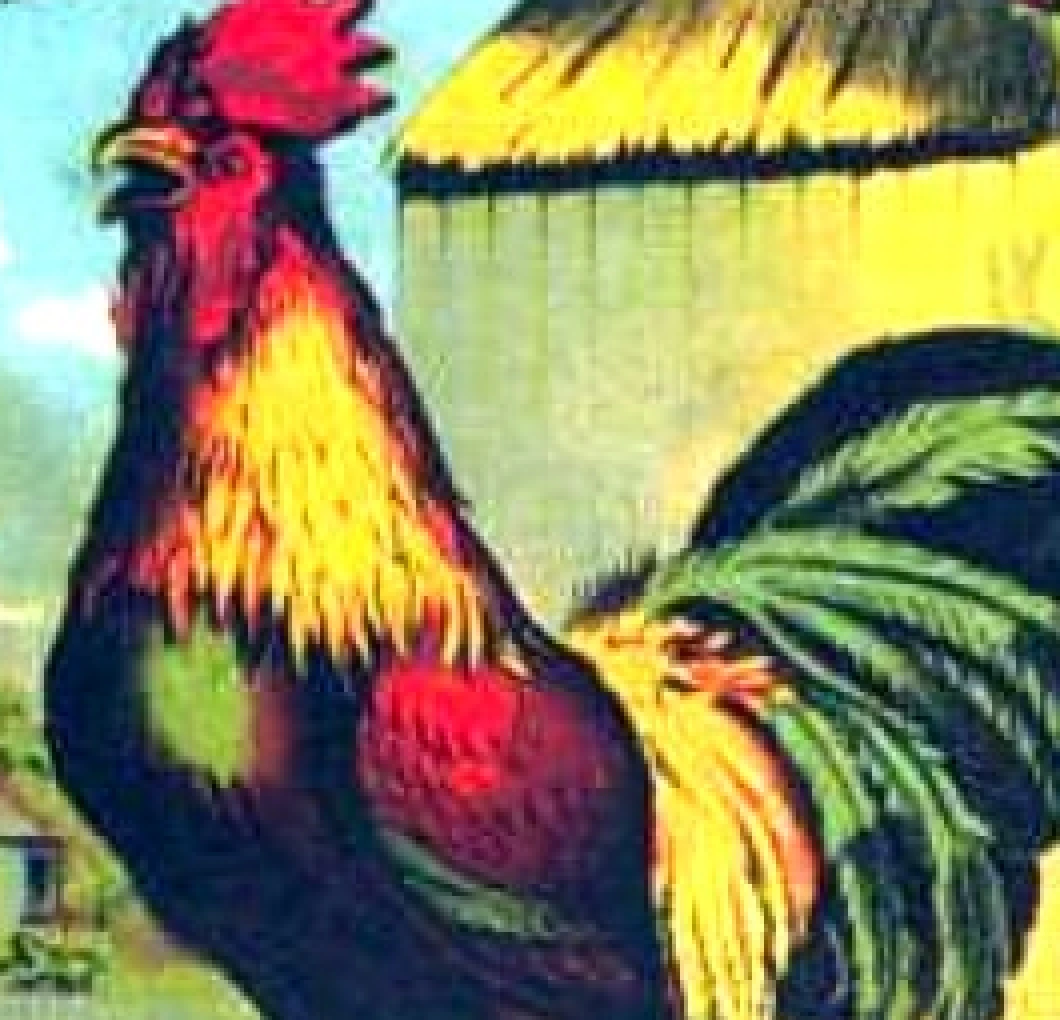
Face upscaled 4x with Topaz Bloom 2, crop at 100%
Face, source crop at 100%
100%

Reference

The full source frame this crop is taken from
Hood and ornament upscaled 4x with Topaz Bloom 2, crop at 100%
Hood and ornament, source crop at 100%
100%

Reference

The full source frame this crop is taken from
The wolf upscaled 4x with Topaz Bloom 2, crop at 100%
The wolf, source crop at 100%
100%

Reference

The full source frame this crop is taken from
The camera upscaled 4x with Topaz Bloom 2, crop at 100%
The camera, source crop at 100%
100%

Reference

The full source frame this crop is taken from
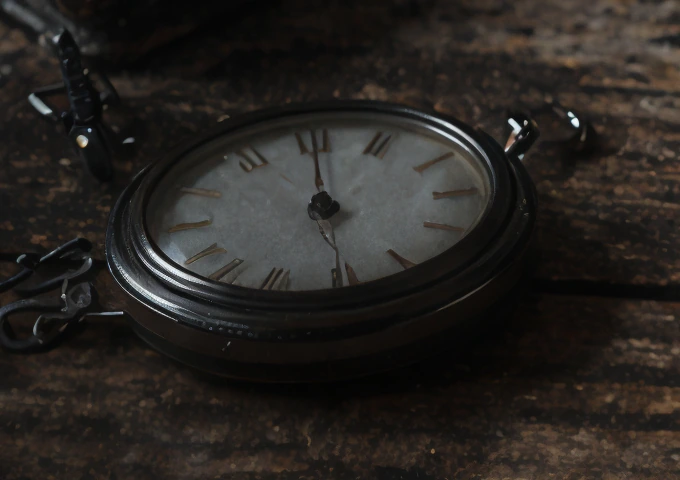
Pocket watch upscaled 4x with Topaz Bloom 2, crop at 100%
Pocket watch, source crop at 100%
100%

Reference

The full source frame this crop is taken from

Parameters

Seed

Optional

Defaults to 1 if omitted.

Color Preservation

Optional

Defaults to true if omitted.

Grain

Optional

Selects whether or not to apply grain. Defaults to false if omitted.

Grain Model

Optional

Required if grain=true. Defaults to silver if omitted.

  • silver

  • gaussian

  • grey

Grain Strength

Optional

Adjusts the strength of the grain. Defaults to 0.5 if omitted. Required if grain=true.

Grain Density

Optional

Adjusts the concentration of grain particles within a given pixel. Defaults to 0.5 if omitted. Required if grain=true.

Grain Size

Optional

Adjusts the size of grain particles within a given pixel. Defaults to 1 if omitted. Required if grain=true.

Face Enhancement

Optional

Leverages face recovery model to enhance faces.

Face Enhancement Strength

Optional

Sets the strength of the face recovery. Required if face_enhancement=true.

Face Enhancement Creativity

Optional

Choose realistic or creative face recovery. Required if face_enhancement=true.

Subject Detection

Optional

Sets the subject detection mode.

  • foreground

  • background

  • all

Sharpen

Optional

Slightly sharpens the image.

Denoise

Optional

Reduces noise in the image.

Prompt

Optional

A description of the resulting image you are looking for. The model responds more to a descriptive statement versus a directive one. For example, use the phrase 'girl with red hair and blue eyes' instead of 'change the girl's hair to red and make her eyes blue'.

Auto-Prompt

Optional

Whether you want to use our state-of-the-art auto-prompting model to auto-generate a prompt for you.If enabled, ignores value given to prompt.

Creativity

Optional

Lower creativity values maintain the highest fidelity to the original image. Higher values take more liberties and provide more creative results for specific details.Defaults to 3 if omitted.

Texture

Optional

Add texture to the image. Recommended to set texture to 1 for at a low creativity level, and 3 for more creative results at a higher creativity level.

Detail Strength

Optional

Sets the strength of the added detail.

Output Format

Optional

The desired format of the output image.

  • jpg

  • png

  • tif

Height

Optional

The desired height of the output image in pixels. Your image will automatically be upscaled to this specified value. If only one of `output_height` and `output_width` is set, then the other dimension is scaled proportionally.

Width

Optional

The desired width of the output image in pixels. Your image will automatically be upscaled to this specified value. If only one of `output_height` and `output_width` is set, then the other dimension is scaled proportionally.

Crop To Fill

Optional

Default behavior is to letterbox the image if a differing aspect ratio is chosen. Enable `crop_to_fill` by setting this to `true` if you instead want to crop the image to fill the dimensions.

Scale Factor

Required

Scale factor to use for enhancing the image. Custom requires either width or height to be set.

  • 2x

  • 3x

  • 4x

  • custom

Image

Required

Source image
Topaz Bloom CreativeAvailable

Topaz Bloom Creative

Bloom Creative is a generative AI upscaling model designed for native GenAI images, enlarging AI-generated artwork, illustrations, and CG renders by up to 8× while creatively introducing new detail, texture, and visual elements. Bloom is guided by an optional prompt input and offers adjustable creativity levels, ranging from zero to bold, allowing users to subtly enhance existing detail or introduce significant, dynamic new elements.

Properties

  • Supports Image Upscale workflows.

Best for

  • Built for native GenAI imagery or artwork that needs creative enhancement
  • Prompt-based guidance controls style, texture, and creative direction
  • Scalable creativity enables subtle enhancement or bold transformation

Tips

  • Creative upscaling for AI generated images and artwork

How to use this model

  1. 1

    Upload the source media at the best quality available.

  2. 2

    Choose the restoration or enhancement variant that matches the defect.

  3. 3

    Compare the output at full size and reduce strength if natural detail is lost.

Examples

Face upscaled 4x with Topaz Bloom Creative, crop at 100%
Face, source crop at 100%
100%
Hood and ornament upscaled 4x with Topaz Bloom Creative, crop at 100%
Hood and ornament, source crop at 100%
100%
The wolf upscaled 4x with Topaz Bloom Creative, crop at 100%
The wolf, source crop at 100%
100%
The camera upscaled 4x with Topaz Bloom Creative, crop at 100%
The camera, source crop at 100%
100%
Pocket watch upscaled 4x with Topaz Bloom Creative, crop at 100%
Pocket watch, source crop at 100%
100%

Parameters

Seed

Optional

Defaults to 1 if omitted.

Face Preservation

Optional

Defaults to true if omitted.

Color Preservation

Optional

Defaults to true if omitted.

Creativity Boost

Optional

Defaults to false if omitted.

Grain

Optional

Selects whether or not to apply grain. Defaults to false if omitted.

Grain Model

Optional

Required if grain=true. Defaults to silver rich if omitted.

  • silver rich

  • gaussian

  • grey

Grain Strength

Optional

Adjusts the strength of the grain. Defaults to 0.5 if omitted. Required if grain=true.

Grain Density

Optional

Adjusts the concentration of grain particles within a given pixel. Defaults to 0.5 if omitted. Required if grain=true.

Grain Size

Optional

Adjusts the size of grain particles within a given pixel. Defaults to 1 if omitted. Required if grain=true.

Face Enhancement

Optional

Leverages face recovery model to enhance faces.

Face Enhancement Strength

Optional

Sets the strength of the face recovery. Required if face_enhancement=true.

Face Enhancement Creativity

Optional

Choose realistic or creative face recovery. Required if face_enhancement=true.

Subject Detection

Optional

Sets the subject detection mode.

  • foreground

  • background

  • all

Sharpen

Optional

Slightly sharpens the image.

Denoise

Optional

Reduces noise in the image.

Prompt

Optional

A description of the resulting image you are looking for. The model responds more to a descriptive statement versus a directive one. For example, use the phrase 'girl with red hair and blue eyes' instead of 'change the girl's hair to red and make her eyes blue'.

Auto-Prompt

Optional

Whether you want to use our state-of-the-art auto-prompting model to auto-generate a prompt for you.If enabled, ignores value given to prompt.

Creativity

Optional

Lower creativity values maintain the highest fidelity to the original image. Higher values take more liberties and provide more creative results for specific details.Defaults to 3 if omitted.

Texture

Optional

Add texture to the image. Recommended to set texture to 1 for at a low creativity level, and 3 for more creative results at a higher creativity level.

Detail Strength

Optional

Sets the strength of the added detail.

Output Format

Optional

The desired format of the output image.

  • jpg

  • png

  • tif

Height

Optional

The desired height of the output image in pixels. Your image will automatically be upscaled to this specified value. If only one of `output_height` and `output_width` is set, then the other dimension is scaled proportionally.

Width

Optional

The desired width of the output image in pixels. Your image will automatically be upscaled to this specified value. If only one of `output_height` and `output_width` is set, then the other dimension is scaled proportionally.

Crop To Fill

Optional

Default behavior is to letterbox the image if a differing aspect ratio is chosen. Enable `crop_to_fill` by setting this to `true` if you instead want to crop the image to fill the dimensions.

Scale Factor

Required

Scale factor to use for enhancing the image. Custom requires either width or height to be set.

  • 2x

  • 3x

  • 4x

  • custom

Image

Required

Source image

Topaz Bloom RealismAvailable

Topaz Bloom Realism

Bloom Realism is an advanced creative upscaling model that removes the plastic, artificial feel of AI-generated images by restoring natural detail and texture across skin, hair, fabrics, metals, and other materials, producing more grounded, believable results.

Properties

  • Supports Image Upscale workflows.

Best for

  • Upscales native GenAI images by up to 8× while maintaining natural structure and visual coherence
  • Replaces synthetic-looking surfaces with more realistic texture and material depth
  • Transforms AI-generated faces and subjects into more believable, lifelike imagery

Tips

  • Realistic and natural detail enhancement for AI-generated images

How to use this model

  1. 1

    Upload the source media at the best quality available.

  2. 2

    Choose the restoration or enhancement variant that matches the defect.

  3. 3

    Compare the output at full size and reduce strength if natural detail is lost.

Examples

Sign on the truck upscaled 4x with Topaz Bloom Realism, crop at 100%
Sign on the truck, source crop at 100%
100%

Reference

The full source frame this crop is taken from
Face upscaled 4x with Topaz Bloom Realism, crop at 100%
Face, source crop at 100%
100%

Reference

The full source frame this crop is taken from
Face upscaled 4x with Topaz Bloom Realism, crop at 100%
Face, source crop at 100%
100%
Hood and ornament upscaled 4x with Topaz Bloom Realism, crop at 100%
Hood and ornament, source crop at 100%
100%
The wolf upscaled 4x with Topaz Bloom Realism, crop at 100%
The wolf, source crop at 100%
100%
The camera upscaled 4x with Topaz Bloom Realism, crop at 100%
The camera, source crop at 100%
100%
Pocket watch upscaled 4x with Topaz Bloom Realism, crop at 100%
Pocket watch, source crop at 100%
100%

Parameters

Creativity

Optional

Lower creativity values maintain the highest fidelity to the original image. Higher values take more liberties and provide more creative results for specific details.Defaults to 3 if omitted.

Seed

Optional

Defaults to 1 if omitted.

Face Enhancement

Optional

Leverages face recovery model to enhance faces.

Face Enhancement Strength

Optional

Sets the strength of the face recovery. Required if face_enhancement=true.

Face Enhancement Creativity

Optional

Choose realistic or creative face recovery. Required if face_enhancement=true.

Subject Detection

Optional

Sets the subject detection mode.

  • foreground

  • background

  • all

Sharpen

Optional

Slightly sharpens the image.

Denoise

Optional

Reduces noise in the image.

Prompt

Optional

A description of the resulting image you are looking for. The model responds more to a descriptive statement versus a directive one. For example, use the phrase 'girl with red hair and blue eyes' instead of 'change the girl's hair to red and make her eyes blue'.

Auto-Prompt

Optional

Whether you want to use our state-of-the-art auto-prompting model to auto-generate a prompt for you.If enabled, ignores value given to prompt.

Texture

Optional

Add texture to the image. Recommended to set texture to 1 for at a low creativity level, and 3 for more creative results at a higher creativity level.

Detail Strength

Optional

Sets the strength of the added detail.

Output Format

Optional

The desired format of the output image.

  • jpg

  • png

  • tif

Height

Optional

The desired height of the output image in pixels. Your image will automatically be upscaled to this specified value. If only one of `output_height` and `output_width` is set, then the other dimension is scaled proportionally.

Width

Optional

The desired width of the output image in pixels. Your image will automatically be upscaled to this specified value. If only one of `output_height` and `output_width` is set, then the other dimension is scaled proportionally.

Crop To Fill

Optional

Default behavior is to letterbox the image if a differing aspect ratio is chosen. Enable `crop_to_fill` by setting this to `true` if you instead want to crop the image to fill the dimensions.

Scale Factor

Required

Scale factor to use for enhancing the image. Custom requires either width or height to be set.

  • 2x

  • 3x

  • 4x

  • custom

Image

Required

Source image
Topaz Detail FacesAvailable

Topaz Detail Faces

Detail Faces is a specialized enhancement model designed to improve facial detail and realism in AI-generated images. It restores natural texture in skin, eyes, and hair while reducing artificial smoothness, producing sharper, more lifelike results without compromising the subject’s identity.

Properties

  • Supports Image Upscale workflows.

Best for

  • Enhancing facial features with natural detail in skin, hair, and eyes.
  • Reducing `plastic` or uncanny valley artifacts for more realistic, lifelike results.
  • Improving clarity in clothing and fine textures for overall image fidelity.

Avoid for

  • Smaller images

Tips

  • Improve realism in AI-generated faces

How to use this model

  1. 1

    Upload the source media at the best quality available.

  2. 2

    Choose the restoration or enhancement variant that matches the defect.

  3. 3

    Compare the output at full size and reduce strength if natural detail is lost.

Examples

Face upscaled 4x with Topaz Detail Faces, crop at 100%
Face, source crop at 100%
100%

Reference

The full source frame this crop is taken from
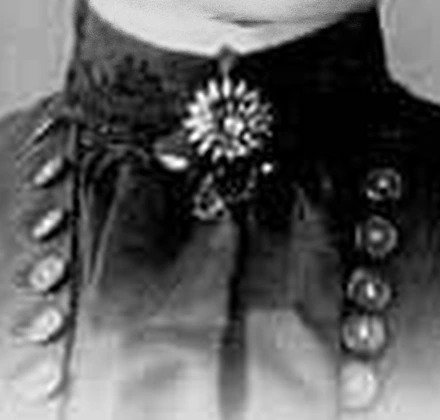
Brooch and buttons upscaled 4x with Topaz Detail Faces, crop at 100%
Brooch and buttons, source crop at 100%
100%

Reference

The full source frame this crop is taken from

Parameters

Detail Strength

Optional

Sets the strength of the added detail.

Face Enhancement

Optional

Leverages face recovery model to enhance faces.

Face Enhancement Strength

Optional

Sets the strength of the face recovery. Required if face_enhancement=true.

Face Enhancement Creativity

Optional

Choose realistic or creative face recovery. Required if face_enhancement=true.

Subject Detection

Optional

Sets the subject detection mode.

  • foreground

  • background

  • all

Sharpen

Optional

Slightly sharpens the image.

Denoise

Optional

Reduces noise in the image.

Prompt

Optional

A description of the resulting image you are looking for. The model responds more to a descriptive statement versus a directive one. For example, use the phrase 'girl with red hair and blue eyes' instead of 'change the girl's hair to red and make her eyes blue'.

Auto-Prompt

Optional

Whether you want to use our state-of-the-art auto-prompting model to auto-generate a prompt for you.If enabled, ignores value given to prompt.

Creativity

Optional

Lower creativity values maintain the highest fidelity to the original image. Higher values take more liberties and provide more creative results for specific details.Defaults to 3 if omitted.

Texture

Optional

Add texture to the image. Recommended to set texture to 1 for at a low creativity level, and 3 for more creative results at a higher creativity level.

Output Format

Optional

The desired format of the output image.

  • jpg

  • png

  • tif

Height

Optional

The desired height of the output image in pixels. Your image will automatically be upscaled to this specified value. If only one of `output_height` and `output_width` is set, then the other dimension is scaled proportionally.

Width

Optional

The desired width of the output image in pixels. Your image will automatically be upscaled to this specified value. If only one of `output_height` and `output_width` is set, then the other dimension is scaled proportionally.

Crop To Fill

Optional

Default behavior is to letterbox the image if a differing aspect ratio is chosen. Enable `crop_to_fill` by setting this to `true` if you instead want to crop the image to fill the dimensions.

Scale Factor

Required

Scale factor to use for enhancing the image. Custom requires either width or height to be set.

  • 2x

  • 3x

  • 4x

  • custom

Image

Required

Source image
Topaz High Fidelity 3Available

Topaz High Fidelity 3

High Fidelity 3 is intended for medium- and high-quality photographs that need enlargement without an invented look. It preserves natural structure and fine detail while limiting artifacts, making it a conservative choice when source fidelity matters more than aggressive reconstruction.

Properties

  • Supports Image Upscale workflows.

Best for

  • High-fidelity upscaling for already high-resolution sources
  • Preserving fine detail and original texture during enlargement

Avoid for

  • Low-res photos

Tips

  • Fidelity upscaling for high-resolution images and professional photos

How to use this model

  1. 1

    Upload the source media at the best quality available.

  2. 2

    Choose the restoration or enhancement variant that matches the defect.

  3. 3

    Compare the output at full size and reduce strength if natural detail is lost.

Parameters

Face Enhancement

Optional

Leverages face recovery model to enhance faces.

Face Enhancement Strength

Optional

Sets the strength of the face recovery. Required if face_enhancement=true.

Face Enhancement Creativity

Optional

Choose realistic or creative face recovery. Required if face_enhancement=true.

Subject Detection

Optional

Sets the subject detection mode.

  • foreground

  • background

  • all

Sharpen

Optional

Slightly sharpens the image.

Denoise

Optional

Reduces noise in the image.

Fix Compression

Optional

Reduces compression artifacts to improve details.

Strength

Optional

Controls model strength. Too high of a result can make results look unrealistic.

Output Format

Optional

The desired format of the output image.

  • jpg

  • png

  • tif

Height

Optional

The desired height of the output image in pixels. Your image will automatically be upscaled to this specified value. If only one of `output_height` and `output_width` is set, then the other dimension is scaled proportionally.

Width

Optional

The desired width of the output image in pixels. Your image will automatically be upscaled to this specified value. If only one of `output_height` and `output_width` is set, then the other dimension is scaled proportionally.

Crop To Fill

Optional

Default behavior is to letterbox the image if a differing aspect ratio is chosen. Enable `crop_to_fill` by setting this to `true` if you instead want to crop the image to fill the dimensions.

Scale Factor

Required

Scale factor to use for enhancing the image. Custom requires either width or height to be set.

  • 2x

  • 3x

  • 4x

  • custom

Image

Required

Source image
Recovery Strength

Optional

Strength of detail recovery.

Opacity

Optional

Adjusts opacity strength.

Topaz High Fidelity V2Available

Topaz High Fidelity V2

High Fidelity 2 is a precision upscaling model designed for images that are already high resolution and well captured. It focuses on enlarging images while preserving fine detail, natural texture, and structural accuracy, avoiding aggressive reconstruction or over-sharpening.

Properties

  • Supports Image Upscale workflows.

Best for

  • High-fidelity upscaling for already high-resolution sources
  • Preserving fine detail and original texture during enlargement

Avoid for

  • Low-res photos

Tips

  • Fidelity upscaling for high-resolution images and professional photos

How to use this model

  1. 1

    Upload the source media at the best quality available.

  2. 2

    Choose the restoration or enhancement variant that matches the defect.

  3. 3

    Compare the output at full size and reduce strength if natural detail is lost.

Examples

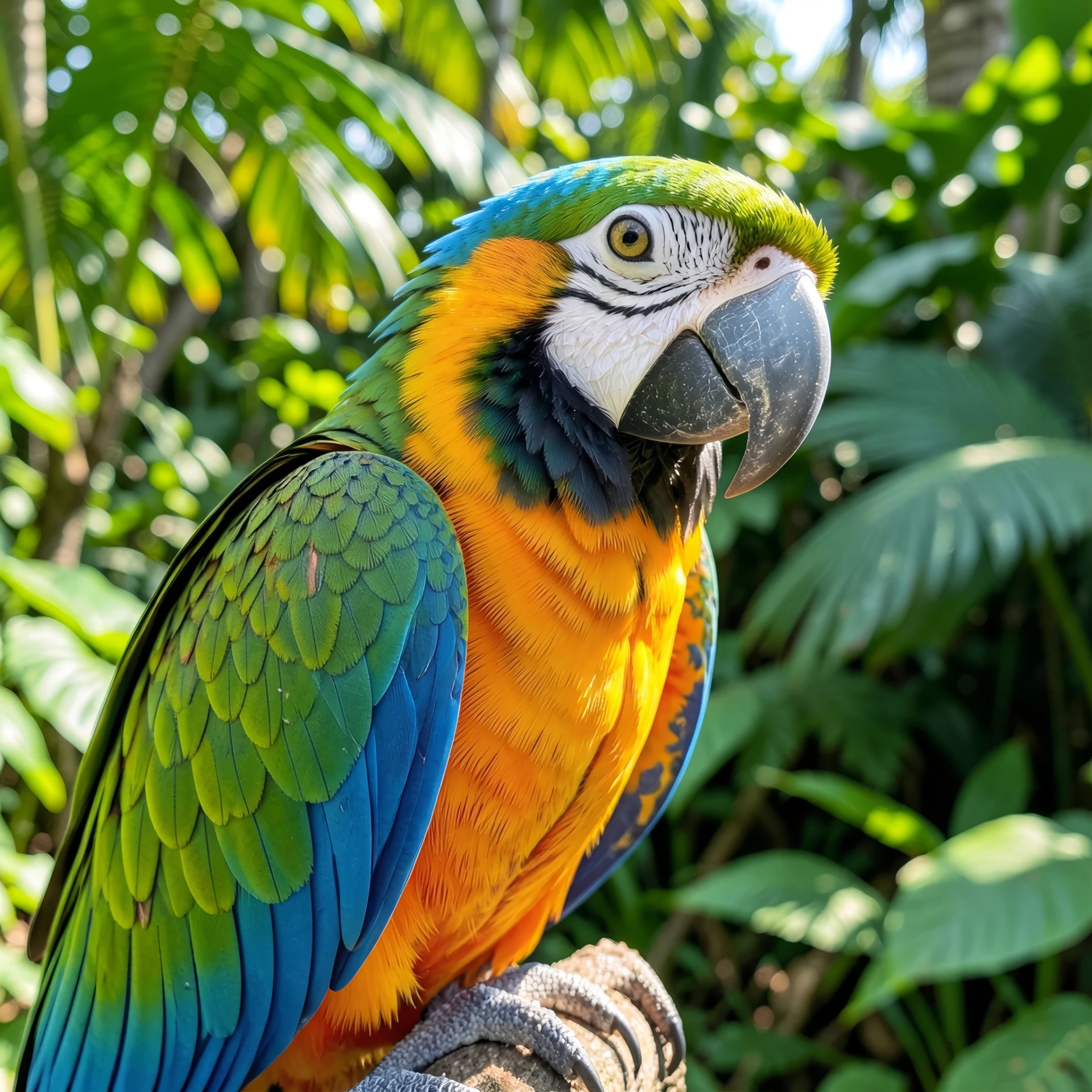
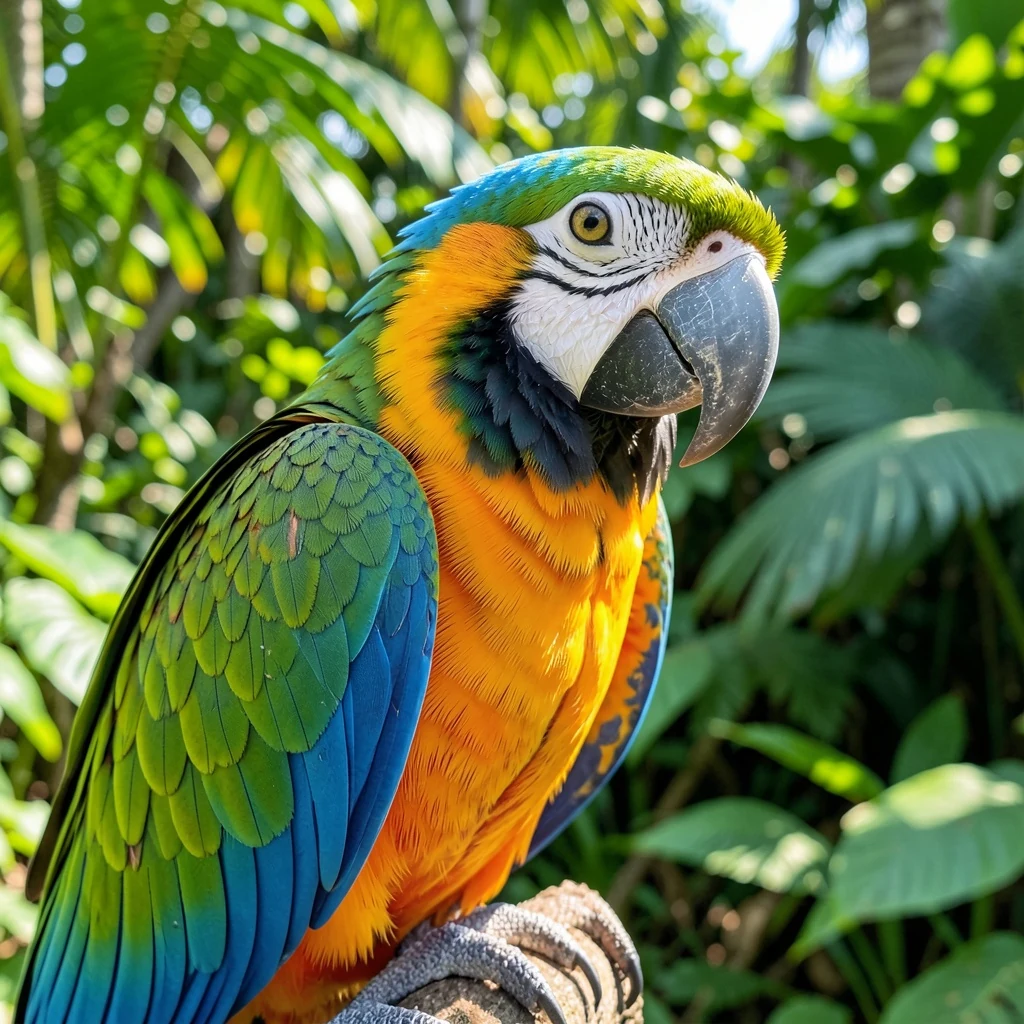
A detailed blue-and-gold macaw
The 1024x1024 source before upscaling
100%

Parameters

Face Enhancement

Optional

Leverages face recovery model to enhance faces.

Face Enhancement Strength

Optional

Sets the strength of the face recovery. Required if face_enhancement=true.

Face Enhancement Creativity

Optional

Choose realistic or creative face recovery. Required if face_enhancement=true.

Subject Detection

Optional

Sets the subject detection mode.

  • foreground

  • background

  • all

Sharpen

Optional

Slightly sharpens the image.

Denoise

Optional

Reduces noise in the image.

Fix Compression

Optional

Reduces compression artifacts to improve details.

Strength

Optional

Controls model strength. Too high of a result can make results look unrealistic.

Output Format

Optional

The desired format of the output image.

  • jpg

  • png

  • tif

Height

Optional

The desired height of the output image in pixels. Your image will automatically be upscaled to this specified value. If only one of `output_height` and `output_width` is set, then the other dimension is scaled proportionally.

Width

Optional

The desired width of the output image in pixels. Your image will automatically be upscaled to this specified value. If only one of `output_height` and `output_width` is set, then the other dimension is scaled proportionally.

Crop To Fill

Optional

Default behavior is to letterbox the image if a differing aspect ratio is chosen. Enable `crop_to_fill` by setting this to `true` if you instead want to crop the image to fill the dimensions.
Scale Factor

Required

Scale factor to use for enhancing the image. Custom requires either width or height to be set.

  • 2x

  • 3x

  • 4x

  • custom

Image

Required

Source image

Topaz Low Resolution V2Available

Topaz Low Resolution V2

Low Resolution 2 is optimized for images that start with limited detail, heavy compression, or small dimensions. It focuses on intelligent reconstruction to recover usable detail from challenging sources without modifying the source characteristics.

Properties

  • Supports Image Upscale workflows.

Best for

  • Low-resolution and compressed images
  • Recovering usable detail from difficult inputs
  • Improving clarity while avoiding exaggerated artifacts

Tips

  • Recovery-focused upscaling for low resolution or heavily compressed sources

How to use this model

  1. 1

    Upload the source media at the best quality available.

  2. 2

    Choose the restoration or enhancement variant that matches the defect.

  3. 3

    Compare the output at full size and reduce strength if natural detail is lost.

Parameters

Face Enhancement

Optional

Leverages face recovery model to enhance faces.

Face Enhancement Strength

Optional

Sets the strength of the face recovery. Required if face_enhancement=true.

Face Enhancement Creativity

Optional

Choose realistic or creative face recovery. Required if face_enhancement=true.

Subject Detection

Optional

Sets the subject detection mode.

  • foreground

  • background

  • all

Sharpen

Optional

Slightly sharpens the image.

Denoise

Optional

Reduces noise in the image.

Fix Compression

Optional

Reduces compression artifacts to improve details.

Strength

Optional

Controls model strength. Too high of a result can make results look unrealistic.

Output Format

Optional

The desired format of the output image.

  • jpg

  • png

  • tif

Height

Optional

The desired height of the output image in pixels. Your image will automatically be upscaled to this specified value. If only one of `output_height` and `output_width` is set, then the other dimension is scaled proportionally.

Width

Optional

The desired width of the output image in pixels. Your image will automatically be upscaled to this specified value. If only one of `output_height` and `output_width` is set, then the other dimension is scaled proportionally.

Crop To Fill

Optional

Default behavior is to letterbox the image if a differing aspect ratio is chosen. Enable `crop_to_fill` by setting this to `true` if you instead want to crop the image to fill the dimensions.

Scale Factor

Required

Scale factor to use for enhancing the image. Custom requires either width or height to be set.

  • 2x

  • 3x

  • 4x

  • custom

Image

Required

Source image

Topaz Recover 3Available

Topaz Recover 3

Recover 3 is a generative image recovery model designed to reconstruct missing detail in low-resolution, damaged, or out-of-focus images, with a particular strength in restoring realistic facial features and natural textures. Now in its third generation, Recover 3 delivers significantly improved detail reconstruction, texture fidelity, and realism compared to earlier versions. Recover 3 intelligently rebuilds hair, skin, fabric, foliage, and other organic detail where original image information is limited or lost. It is especially effective for old photographs, heavily compressed images, and small or blurry faces, producing results that feel photographic rather than artificial.

Properties

  • Supports Image Upscale workflows.

Best for

  • Reconstructs missing facial features and fine textures with improved realism and stability over earlier Recover models.
  • Prioritizes believable skin, hair, and material textures while avoiding over-sharpened or plastic artifacts.
  • Realistic and Creative recovery options to balance fidelity versus detail generation, depending on source quality.

Tips

  • Generative diffusion model that excels at recovering rich, natural detail

How to use this model

  1. 1

    Upload the source media at the best quality available.

  2. 2

    Choose the restoration or enhancement variant that matches the defect.

  3. 3

    Compare the output at full size and reduce strength if natural detail is lost.

Examples

Sign on the truck upscaled 4x with Topaz Recover 3, crop at 100%
Sign on the truck, source crop at 100%
100%
Face upscaled 4x with Topaz Recover 3, crop at 100%
Face, source crop at 100%
100%
Face upscaled 4x with Topaz Recover 3, crop at 100%
Face, source crop at 100%
100%
Brooch and buttons upscaled 4x with Topaz Recover 3, crop at 100%
Brooch and buttons, source crop at 100%
100%

Parameters

Enhancement Strength

Optional

Adjusts the strength of the enhancement. Defaults to 5.0 if omitted.

Face Enhancement

Optional

Leverages face recovery model to enhance faces.

Face Enhancement Strength

Optional

Sets the strength of the face recovery. Required if face_enhancement=true.

Face Enhancement Creativity

Optional

Choose realistic or creative face recovery. Required if face_enhancement=true.

Subject Detection

Optional

Sets the subject detection mode.

  • foreground

  • background

  • all

Sharpen

Optional

Slightly sharpens the image.

Denoise

Optional

Reduces noise in the image.

Prompt

Optional

A description of the resulting image you are looking for. The model responds more to a descriptive statement versus a directive one. For example, use the phrase 'girl with red hair and blue eyes' instead of 'change the girl's hair to red and make her eyes blue'.

Auto-Prompt

Optional

Whether you want to use our state-of-the-art auto-prompting model to auto-generate a prompt for you.If enabled, ignores value given to prompt.

Creativity

Optional

Lower creativity values maintain the highest fidelity to the original image. Higher values take more liberties and provide more creative results for specific details.Defaults to 3 if omitted.

Texture

Optional

Add texture to the image. Recommended to set texture to 1 for at a low creativity level, and 3 for more creative results at a higher creativity level.

Detail Strength

Optional

Sets the strength of the added detail.

Output Format

Optional

The desired format of the output image.

  • jpg

  • png

  • tif

Height

Optional

The desired height of the output image in pixels. Your image will automatically be upscaled to this specified value. If only one of `output_height` and `output_width` is set, then the other dimension is scaled proportionally.

Width

Optional

The desired width of the output image in pixels. Your image will automatically be upscaled to this specified value. If only one of `output_height` and `output_width` is set, then the other dimension is scaled proportionally.

Crop To Fill

Optional

Default behavior is to letterbox the image if a differing aspect ratio is chosen. Enable `crop_to_fill` by setting this to `true` if you instead want to crop the image to fill the dimensions.

Scale Factor

Required

Scale factor to use for enhancing the image. Custom requires either width or height to be set.

  • 2x

  • 3x

  • 4x

  • custom

Image

Required

Source image

Topaz RedefineAvailable

Topaz Redefine

Redefine is a generative image enhancement model designed to add new detail and rebuild structure when original image information is missing or degraded. Unlike precision upscaling models, Redefine can generate photorealistic detail to restore clarity in blurry, low-resolution, or damaged images.

Properties

  • Supports Image Upscale workflows.

Best for

  • Generative enhancement that adds new detail and structure
  • Prompt-driven control for creative and VFX workflows
  • Powerful recovery of blurry, low-resolution, and heavily degraded images

Tips

  • Generative diffusion model adds new detail with prompt-based enhancement

How to use this model

  1. 1

    Upload the source media at the best quality available.

  2. 2

    Choose the restoration or enhancement variant that matches the defect.

  3. 3

    Compare the output at full size and reduce strength if natural detail is lost.

Examples

Sign on the truck upscaled 4x with Topaz Redefine, crop at 100%
Sign on the truck, source crop at 100%
100%
Face upscaled 4x with Topaz Redefine, crop at 100%
Face, source crop at 100%
100%

Parameters

Face Enhancement

Optional

Leverages face recovery model to enhance faces.

Face Enhancement Strength

Optional

Sets the strength of the face recovery. Required if face_enhancement=true.

Face Enhancement Creativity

Optional

Choose realistic or creative face recovery. Required if face_enhancement=true.

Subject Detection

Optional

Sets the subject detection mode.

  • foreground

  • background

  • all

Sharpen

Optional

Slightly sharpens the image.

Denoise

Optional

Reduces noise in the image.

Prompt

Optional

A description of the resulting image you are looking for. The model responds more to a descriptive statement versus a directive one. For example, use the phrase 'girl with red hair and blue eyes' instead of 'change the girl's hair to red and make her eyes blue'.

Auto-Prompt

Optional

Whether you want to use our state-of-the-art auto-prompting model to auto-generate a prompt for you.If enabled, ignores value given to prompt.

Creativity

Optional

Lower creativity values maintain the highest fidelity to the original image. Higher values take more liberties and provide more creative results for specific details.Defaults to 3 if omitted.

Texture

Optional

Add texture to the image. Recommended to set texture to 1 for at a low creativity level, and 3 for more creative results at a higher creativity level.

Detail Strength

Optional

Sets the strength of the added detail.

Output Format

Optional

The desired format of the output image.

  • jpg

  • png

  • tif

Height

Optional

The desired height of the output image in pixels. Your image will automatically be upscaled to this specified value. If only one of `output_height` and `output_width` is set, then the other dimension is scaled proportionally.

Width

Optional

The desired width of the output image in pixels. Your image will automatically be upscaled to this specified value. If only one of `output_height` and `output_width` is set, then the other dimension is scaled proportionally.

Crop To Fill

Optional

Default behavior is to letterbox the image if a differing aspect ratio is chosen. Enable `crop_to_fill` by setting this to `true` if you instead want to crop the image to fill the dimensions.

Scale Factor

Required

Scale factor to use for enhancing the image. Custom requires either width or height to be set.

  • 2x

  • 3x

  • 4x

  • custom

Image

Required

Source image

Topaz Standard MaxAvailable

Topaz Standard Max

Standard Max is a generative model that delivers high-quality, natural results while remaining efficient enough to run on a wide range of devices. It achieves detail and realism comparable to generative upscaling models, without the heavy hardware requirements or long processing times typically associated with them. Standard Max delivers strong results across all image types and resolutions, and is especially effective on low-resolution images where it restores photorealistic detail with clean textures and minimal artifacts. It also performs reliably on medium and high-quality sources, making it a versatile and dependable choice for everyday upscaling.

Properties

  • Supports Image Upscale workflows.

Best for

  • High-quality, true-to-input upscaling with natural detail
  • Excellent recovery of detail from low-resolution images
  • Faster than most image diffusion-based upscaling models

Tips

  • High-quality precision upscaling with broader accessibility

How to use this model

  1. 1

    Upload the source media at the best quality available.

  2. 2

    Choose the restoration or enhancement variant that matches the defect.

  3. 3

    Compare the output at full size and reduce strength if natural detail is lost.

Parameters

Face Enhancement

Optional

Leverages face recovery model to enhance faces.

Face Enhancement Strength

Optional

Sets the strength of the face recovery. Required if face_enhancement=true.

Face Enhancement Creativity

Optional

Choose realistic or creative face recovery. Required if face_enhancement=true.

Subject Detection

Optional

Sets the subject detection mode.

  • foreground

  • background

  • all

Sharpen

Optional

Slightly sharpens the image.

Denoise

Optional

Reduces noise in the image.

Prompt

Optional

A description of the resulting image you are looking for. The model responds more to a descriptive statement versus a directive one. For example, use the phrase 'girl with red hair and blue eyes' instead of 'change the girl's hair to red and make her eyes blue'.

Auto-Prompt

Optional

Whether you want to use our state-of-the-art auto-prompting model to auto-generate a prompt for you.If enabled, ignores value given to prompt.

Creativity

Optional

Lower creativity values maintain the highest fidelity to the original image. Higher values take more liberties and provide more creative results for specific details.Defaults to 3 if omitted.

Texture

Optional

Add texture to the image. Recommended to set texture to 1 for at a low creativity level, and 3 for more creative results at a higher creativity level.

Detail Strength

Optional

Sets the strength of the added detail.

Output Format

Optional

The desired format of the output image.

  • jpg

  • png

  • tif

Height

Optional

The desired height of the output image in pixels. Your image will automatically be upscaled to this specified value. If only one of `output_height` and `output_width` is set, then the other dimension is scaled proportionally.

Width

Optional

The desired width of the output image in pixels. Your image will automatically be upscaled to this specified value. If only one of `output_height` and `output_width` is set, then the other dimension is scaled proportionally.

Crop To Fill

Optional

Default behavior is to letterbox the image if a differing aspect ratio is chosen. Enable `crop_to_fill` by setting this to `true` if you instead want to crop the image to fill the dimensions.

Scale Factor

Required

Scale factor to use for enhancing the image. Custom requires either width or height to be set.

  • 2x

  • 3x

  • 4x

  • custom

Image

Required

Source image

Topaz Standard V2Available

Topaz Standard V2

Standard 2 is the general-purpose image upscaling model recommended for most photos and graphics. It delivers clean, reliable enlargement across a wide range of image types while maintaining true-to-input detail and structure.

Properties

  • Supports Image Upscale workflows.

Best for

  • Preserve natural detail and texture
  • Photos, Graphics, and Print

Tips

  • General-purpose model balancing detail, sharpness, and noise reduction

How to use this model

  1. 1

    Upload the source media at the best quality available.

  2. 2

    Choose the restoration or enhancement variant that matches the defect.

  3. 3

    Compare the output at full size and reduce strength if natural detail is lost.

Examples

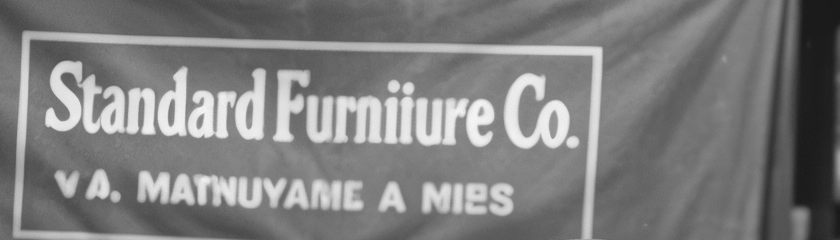
Sign on the truck upscaled 4x with Topaz Standard V2, crop at 100%
Sign on the truck, source crop at 100%
100%
Face upscaled 4x with Topaz Standard V2, crop at 100%
Face, source crop at 100%
100%
Face upscaled 4x with Topaz Standard V2, crop at 100%
Face, source crop at 100%
100%
Brooch and buttons upscaled 4x with Topaz Standard V2, crop at 100%
Brooch and buttons, source crop at 100%
100%
Face upscaled 4x with Topaz Standard V2, crop at 100%
Face, source crop at 100%
100%
Hood and ornament upscaled 4x with Topaz Standard V2, crop at 100%
Hood and ornament, source crop at 100%
100%
The wolf upscaled 4x with Topaz Standard V2, crop at 100%
The wolf, source crop at 100%
100%
The camera upscaled 4x with Topaz Standard V2, crop at 100%
The camera, source crop at 100%
100%
Pocket watch upscaled 4x with Topaz Standard V2, crop at 100%
Pocket watch, source crop at 100%
100%
The rooster upscaled 4x with Topaz Standard V2, crop at 100%
The rooster, source crop at 100%
100%
Bottom line upscaled 4x with Topaz Standard V2, crop at 100%
Bottom line, source crop at 100%
100%
Edge of the pappus upscaled 4x with Topaz Standard V2, crop at 100%
Edge of the pappus, source crop at 100%
100%

Reference

The full source frame this crop is taken from

Parameters

Face Enhancement

Optional

Leverages face recovery model to enhance faces.

Face Enhancement Strength

Optional

Sets the strength of the face recovery. Required if face_enhancement=true.

Face Enhancement Creativity

Optional

Choose realistic or creative face recovery. Required if face_enhancement=true.

Subject Detection

Optional

Sets the subject detection mode.

  • foreground

  • background

  • all

Sharpen

Optional

Slightly sharpens the image.

Denoise

Optional

Reduces noise in the image.

Fix Compression

Optional

Reduces compression artifacts to improve details.

Strength

Optional

Controls model strength. Too high of a result can make results look unrealistic.

Output Format

Optional

The desired format of the output image.

  • jpg

  • png

  • tif

Height

Optional

The desired height of the output image in pixels. Your image will automatically be upscaled to this specified value. If only one of `output_height` and `output_width` is set, then the other dimension is scaled proportionally.

Width

Optional

The desired width of the output image in pixels. Your image will automatically be upscaled to this specified value. If only one of `output_height` and `output_width` is set, then the other dimension is scaled proportionally.

Crop To Fill

Optional

Default behavior is to letterbox the image if a differing aspect ratio is chosen. Enable `crop_to_fill` by setting this to `true` if you instead want to crop the image to fill the dimensions.

Scale Factor

Required

Scale factor to use for enhancing the image. Custom requires either width or height to be set.

  • 2x

  • 3x

  • 4x

  • custom

Image

Required

Source image

Topaz Text & ShapesAvailable

Topaz Text & Shapes

Text & Shapes is specialized for images dominated by lettering, logos, icons, interface elements, and clean geometry. It prioritizes sharp boundaries and recognizable shapes over photographic texture, making it a poor default for portraits or organic scenes.

Properties

  • Specialized for text, logos, UI elements, and geometric shapes.
  • Prioritizes edge and shape clarity over photographic texture.

Best for

  • Logos, UI, and graphic design assets
  • Preserving sharp edges and geometric structure
  • Maintaining legibility during enlargement

Tips

  • Clean upscaling for graphics and typography

How to use this model

  1. 1

    Use a clean source and crop away unrelated photographic content where practical.

  2. 2

    Set output dimensions for the actual display or print target.

  3. 3

    Keep strength conservative when thin fonts or small counters are present.

  4. 4

    Proofread every character and inspect logos, icons, corners, and parallel lines at 100%.

Examples

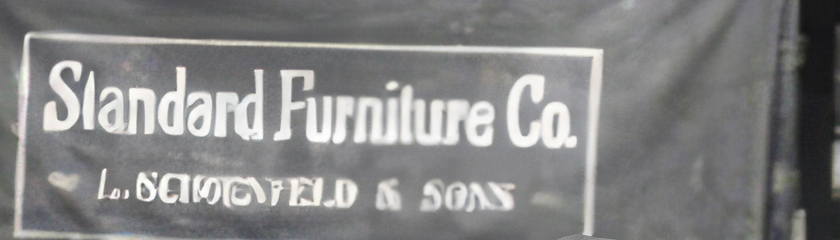
Sign on the truck upscaled 4x with Topaz Text & Shapes, crop at 100%
Sign on the truck, source crop at 100%
100%
Face upscaled 4x with Topaz Text & Shapes, crop at 100%
Face, source crop at 100%
100%
The rooster upscaled 4x with Topaz Text & Shapes, crop at 100%
The rooster, source crop at 100%
100%
Bottom line upscaled 4x with Topaz Text & Shapes, crop at 100%
Bottom line, source crop at 100%
100%

Parameters

Denoise Strength

Optional

Adjusts the strength of the denoise. Defaults to 0.5 if omitted.

Deblur Strength

Optional

Adjusts the strength of the deblur. Defaults to 0.5 if omitted.

Decompression Strength

Optional

Adjusts the strength of the decompression. Defaults to 0.5 if omitted.

Opacity

Optional

Adjusts the strength of opacity. Defaults to 1.0 if omitted.

Face Enhancement

Optional

Leverages face recovery model to enhance faces.

Face Enhancement Strength

Optional

Sets the strength of the face recovery. Required if face_enhancement=true.

Face Enhancement Creativity

Optional

Choose realistic or creative face recovery. Required if face_enhancement=true.

Subject Detection

Optional

Sets the subject detection mode.

  • foreground

  • background

  • all

Sharpen

Optional

Slightly sharpens the image.

Denoise

Optional

Reduces noise in the image.

Fix Compression

Optional

Reduces compression artifacts to improve details.

Strength

Optional

Controls model strength. Too high of a result can make results look unrealistic.

Output Format

Optional

The desired format of the output image.

  • jpg

  • png

  • tif

Height

Optional

The desired height of the output image in pixels. Your image will automatically be upscaled to this specified value. If only one of `output_height` and `output_width` is set, then the other dimension is scaled proportionally.

Width

Optional

The desired width of the output image in pixels. Your image will automatically be upscaled to this specified value. If only one of `output_height` and `output_width` is set, then the other dimension is scaled proportionally.

Crop To Fill

Optional

Default behavior is to letterbox the image if a differing aspect ratio is chosen. Enable `crop_to_fill` by setting this to `true` if you instead want to crop the image to fill the dimensions.

Scale Factor

Required

Scale factor to use for enhancing the image. Custom requires either width or height to be set.

  • 2x

  • 3x

  • 4x

  • custom

Image

Required

Source image

Topaz Transparent Image UpscaleAvailable

Topaz Transparent Image Upscale

A specialized upscaling model designed specifically for images with transparency, including logos, icons, titles, and graphic overlays. This model enhances resolution while preserving alpha channel integrity, ensuring that edges, cutouts, and semi-transparent regions remain clean and artifact-free without affecting the background.

Properties

  • Supports Image Upscale workflows.

Best for

  • Preserving alpha channels and transparency with pixel-accurate edge handling
  • Logos, lower thirds, UI elements, and composited graphics requiring clean edges

Tips

  • Preserve Alpha Transparency

How to use this model

  1. 1

    Upload the source media at the best quality available.

  2. 2

    Choose the restoration or enhancement variant that matches the defect.

  3. 3

    Compare the output at full size and reduce strength if natural detail is lost.

Examples

Edge of the pappus upscaled 4x with Topaz Transparent Image Upscale, crop at 100%
Edge of the pappus, source crop at 100%
100%

Parameters

Output Format

Optional

The desired format of the output image.

  • jpg

  • png

  • tif

Height

Optional

The desired height of the output image in pixels. Your image will automatically be upscaled to this specified value. If only one of `output_height` and `output_width` is set, then the other dimension is scaled proportionally.

Width

Optional

The desired width of the output image in pixels. Your image will automatically be upscaled to this specified value. If only one of `output_height` and `output_width` is set, then the other dimension is scaled proportionally.

Crop To Fill

Optional

Default behavior is to letterbox the image if a differing aspect ratio is chosen. Enable `crop_to_fill` by setting this to `true` if you instead want to crop the image to fill the dimensions.

Scale Factor

Required

Scale factor to use for enhancing the image. Custom requires either width or height to be set.

  • 2x

  • 3x

  • 4x

  • custom

Image

Required

Source image

Topaz WonderAvailable

Topaz Wonder

Wonder performs one-step generative repair and enhancement for small and medium low-resolution images. It favors realistic, clean detail over strict pixel-level fidelity, so it is useful for visibly degraded sources but should be reviewed carefully when exact text, identity, products, or documentary accuracy matter.

Properties

  • Supports Image Upscale workflows.

Best for

  • Enhancement for difficult or low-quality images
  • Restoring sharper, more natural detail with strong artifact prevention
  • Preserving text, logos, and fine details when source quality allows

Tips

  • The most advanced generative realism model for challenging images

How to use this model

  1. 1

    Upload the source media at the best quality available.

  2. 2

    Choose the restoration or enhancement variant that matches the defect.

  3. 3

    Compare the output at full size and reduce strength if natural detail is lost.

Parameters

Face Enhancement

Optional

Leverages face recovery model to enhance faces.

Face Enhancement Strength

Optional

Sets the strength of the face recovery. Required if face_enhancement=true.

Face Enhancement Creativity

Optional

Choose realistic or creative face recovery. Required if face_enhancement=true.

Subject Detection

Optional

Sets the subject detection mode.

  • foreground

  • background

  • all

Sharpen

Optional

Slightly sharpens the image.

Denoise

Optional

Reduces noise in the image.

Prompt

Optional

A description of the resulting image you are looking for. The model responds more to a descriptive statement versus a directive one. For example, use the phrase 'girl with red hair and blue eyes' instead of 'change the girl's hair to red and make her eyes blue'.

Auto-Prompt

Optional

Whether you want to use our state-of-the-art auto-prompting model to auto-generate a prompt for you.If enabled, ignores value given to prompt.

Creativity

Optional

Lower creativity values maintain the highest fidelity to the original image. Higher values take more liberties and provide more creative results for specific details.Defaults to 3 if omitted.

Texture

Optional

Add texture to the image. Recommended to set texture to 1 for at a low creativity level, and 3 for more creative results at a higher creativity level.

Detail Strength

Optional

Sets the strength of the added detail.

Output Format

Optional

The desired format of the output image.

  • jpg

  • png

  • tif

Height

Optional

The desired height of the output image in pixels. Your image will automatically be upscaled to this specified value. If only one of `output_height` and `output_width` is set, then the other dimension is scaled proportionally.

Width

Optional

The desired width of the output image in pixels. Your image will automatically be upscaled to this specified value. If only one of `output_height` and `output_width` is set, then the other dimension is scaled proportionally.

Crop To Fill

Optional

Default behavior is to letterbox the image if a differing aspect ratio is chosen. Enable `crop_to_fill` by setting this to `true` if you instead want to crop the image to fill the dimensions.

Scale Factor

Required

Scale factor to use for enhancing the image. Custom requires either width or height to be set.

  • 2x

  • 3x

  • 4x

  • custom

Image

Required

Source image

Topaz Wonder 2Available

Topaz Wonder 2

Wonder 2 is the second-generation Wonder model and the most advanced realism-focused image enhancement model in the family. It is designed to handle extremely challenging, low-resolution images and produces outputs that look clean, natural, and professional. Wonder 2 restores sharper, more natural detail across the image, resolving plasticky or airbrushed artifacts to produce clean, realistic results. It recovers skin texture, facial features, hair, fabric, and environmental detail while minimizing artifacts and avoiding unnecessary changes to the source during upscaling.

Properties

  • Supports Image Upscale workflows.

Best for

  • Enhancement for difficult or low-quality images
  • Restoring sharper, more natural detail with strong artifact prevention
  • Preserving text, logos, and fine details when source quality allows

Tips

  • The most advanced generative realism model for challenging images

How to use this model

  1. 1

    Upload the source media at the best quality available.

  2. 2

    Choose the restoration or enhancement variant that matches the defect.

  3. 3

    Compare the output at full size and reduce strength if natural detail is lost.

Examples

Seated portrait after Wonder 2 upscaling
Seated portrait before Wonder 2 upscaling
100%

Parameters

Pre-Downscale

Optional

Control pre-downscaling for false resolution images

Color Correction

Optional

Whether to use color correction during post-processing

Face Enhancement

Optional

Leverages face recovery model to enhance faces.

Face Enhancement Strength

Optional

Sets the strength of the face recovery. Required if face_enhancement=true.

Face Enhancement Creativity

Optional

Choose realistic or creative face recovery. Required if face_enhancement=true.

Subject Detection

Optional

Sets the subject detection mode.

  • foreground

  • background

  • all

Sharpen

Optional

Slightly sharpens the image.

Denoise

Optional

Reduces noise in the image.

Prompt

Optional

A description of the resulting image you are looking for. The model responds more to a descriptive statement versus a directive one. For example, use the phrase 'girl with red hair and blue eyes' instead of 'change the girl's hair to red and make her eyes blue'.

Auto-Prompt

Optional

Whether you want to use our state-of-the-art auto-prompting model to auto-generate a prompt for you.If enabled, ignores value given to prompt.

Creativity

Optional

Lower creativity values maintain the highest fidelity to the original image. Higher values take more liberties and provide more creative results for specific details.Defaults to 3 if omitted.

Texture

Optional

Add texture to the image. Recommended to set texture to 1 for at a low creativity level, and 3 for more creative results at a higher creativity level.

Detail Strength

Optional

Sets the strength of the added detail.

Output Format

Optional

The desired format of the output image.

  • jpg

  • png

  • tif

Height

Optional

The desired height of the output image in pixels. Your image will automatically be upscaled to this specified value. If only one of `output_height` and `output_width` is set, then the other dimension is scaled proportionally.

Width

Optional

The desired width of the output image in pixels. Your image will automatically be upscaled to this specified value. If only one of `output_height` and `output_width` is set, then the other dimension is scaled proportionally.

Crop To Fill

Optional

Default behavior is to letterbox the image if a differing aspect ratio is chosen. Enable `crop_to_fill` by setting this to `true` if you instead want to crop the image to fill the dimensions.

Scale Factor

Required

Scale factor to use for enhancing the image. Custom requires either width or height to be set.

  • 2x

  • 3x

  • 4x

  • custom

Image

Required

Source image

Topaz Wonder 3Available

Topaz Wonder 3

Wonder 3 is an updated generative upscaling model designed to deliver significantly higher quality results with more natural detail and improved realism across a wide range of image types. It supports both high-quality inputs and heavily degraded or compressed images, with selectable Low, Medium, and High enhancement levels for greater control across varying input conditions. Wonder 3 performs across all resolution levels and is well suited for portraits, landscapes, wildlife, and complex textures such as fabrics, metallics, feathers, and skin. It also improves on Wonder 2 by resolving challenging edge cases and reducing the plasticky appearance and artifacts seen in earlier versions.

Properties

  • Supports Image Upscale workflows.

Best for

  • Natural detail and improved realism
  • Handling both high-quality inputs and heavily degraded images with consistent performance.
  • Preserving text, logos, and fine details when source quality allows

Tips

  • Most advanced generative realism model for upscaling images

How to use this model

  1. 1

    Upload the source media at the best quality available.

  2. 2

    Choose the restoration or enhancement variant that matches the defect.

  3. 3

    Compare the output at full size and reduce strength if natural detail is lost.

Examples

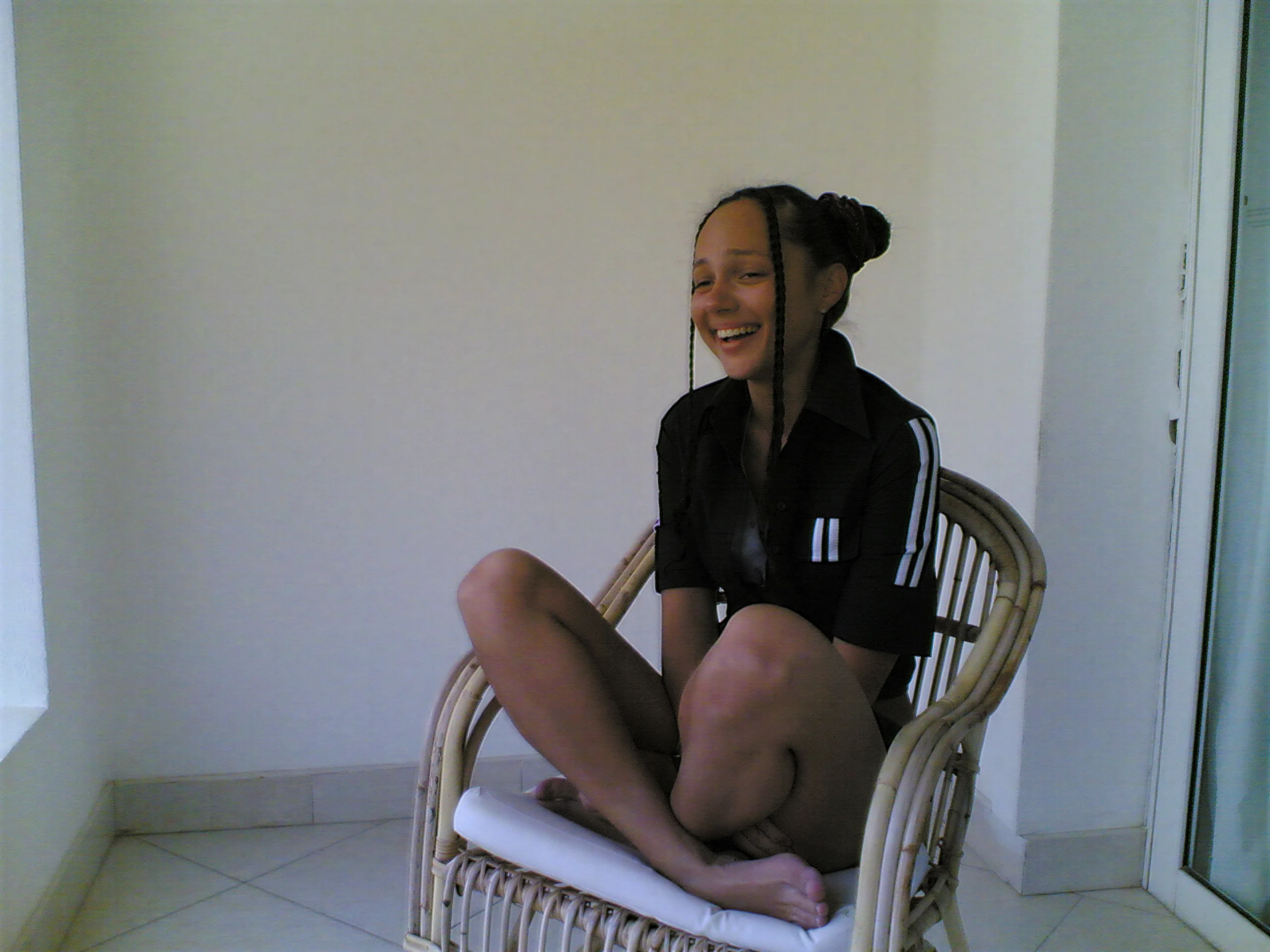
Indoor portrait after Wonder 3 upscaling
Indoor portrait before Wonder 3 upscaling
100%

Parameters

Enhancement Strength

Optional
  • low

  • medium

  • high

Face Enhancement

Optional

Leverages face recovery model to enhance faces.

Face Enhancement Strength

Optional

Sets the strength of the face recovery. Required if face_enhancement=true.

Face Enhancement Creativity

Optional

Choose realistic or creative face recovery. Required if face_enhancement=true.

Subject Detection

Optional

Sets the subject detection mode.

  • foreground

  • background

  • all

Sharpen

Optional

Slightly sharpens the image.

Denoise

Optional

Reduces noise in the image.

Prompt

Optional

A description of the resulting image you are looking for. The model responds more to a descriptive statement versus a directive one. For example, use the phrase 'girl with red hair and blue eyes' instead of 'change the girl's hair to red and make her eyes blue'.

Auto-Prompt

Optional

Whether you want to use our state-of-the-art auto-prompting model to auto-generate a prompt for you.If enabled, ignores value given to prompt.

Creativity

Optional

Lower creativity values maintain the highest fidelity to the original image. Higher values take more liberties and provide more creative results for specific details.Defaults to 3 if omitted.

Texture

Optional

Add texture to the image. Recommended to set texture to 1 for at a low creativity level, and 3 for more creative results at a higher creativity level.

Detail Strength

Optional

Sets the strength of the added detail.

Output Format

Optional

The desired format of the output image.

  • jpg

  • png

  • tif

Height

Optional

The desired height of the output image in pixels. Your image will automatically be upscaled to this specified value. If only one of `output_height` and `output_width` is set, then the other dimension is scaled proportionally.

Width

Optional

The desired width of the output image in pixels. Your image will automatically be upscaled to this specified value. If only one of `output_height` and `output_width` is set, then the other dimension is scaled proportionally.

Crop To Fill

Optional

Default behavior is to letterbox the image if a differing aspect ratio is chosen. Enable `crop_to_fill` by setting this to `true` if you instead want to crop the image to fill the dimensions.

Scale Factor

Required

Scale factor to use for enhancing the image. Custom requires either width or height to be set.

  • 2x

  • 3x

  • 4x

  • custom

Image

Required

Source image

Topaz Wonder 3.5Available

Topaz Wonder 3.5

Wonder 3.5 provides low, medium, and high generative enhancement for both high-quality and heavily degraded images. Its improved realism and structured-detail handling make it flexible across source quality levels, while the selected strength determines how freely the model reconstructs missing visual information.

Properties

  • Supports Image Upscale workflows.

Best for

  • Natural detail and improved realism
  • Handling both high-quality inputs and heavily degraded images with consistent performance.
  • Preserving text, logos, and fine details when source quality allows

Tips

  • Most advanced generative realism model for upscaling images

How to use this model

  1. 1

    Upload the source media at the best quality available.

  2. 2

    Choose the restoration or enhancement variant that matches the defect.

  3. 3

    Compare the output at full size and reduce strength if natural detail is lost.

Parameters

Enhancement Strength

Optional
  • low

  • medium

  • high

Face Enhancement

Optional

Leverages face recovery model to enhance faces.

Face Enhancement Strength

Optional

Sets the strength of the face recovery. Required if face_enhancement=true.

Face Enhancement Creativity

Optional

Choose realistic or creative face recovery. Required if face_enhancement=true.

Subject Detection

Optional

Sets the subject detection mode.

  • foreground

  • background

  • all

Sharpen

Optional

Slightly sharpens the image.

Denoise

Optional

Reduces noise in the image.

Prompt

Optional

A description of the resulting image you are looking for. The model responds more to a descriptive statement versus a directive one. For example, use the phrase 'girl with red hair and blue eyes' instead of 'change the girl's hair to red and make her eyes blue'.

Auto-Prompt

Optional

Whether you want to use our state-of-the-art auto-prompting model to auto-generate a prompt for you.If enabled, ignores value given to prompt.

Creativity

Optional

Lower creativity values maintain the highest fidelity to the original image. Higher values take more liberties and provide more creative results for specific details.Defaults to 3 if omitted.

Texture

Optional

Add texture to the image. Recommended to set texture to 1 for at a low creativity level, and 3 for more creative results at a higher creativity level.

Detail Strength

Optional

Sets the strength of the added detail.

Output Format

Optional

The desired format of the output image.

  • jpg

  • png

  • tif

Height

Optional

The desired height of the output image in pixels. Your image will automatically be upscaled to this specified value. If only one of `output_height` and `output_width` is set, then the other dimension is scaled proportionally.

Width

Optional

The desired width of the output image in pixels. Your image will automatically be upscaled to this specified value. If only one of `output_height` and `output_width` is set, then the other dimension is scaled proportionally.

Crop To Fill

Optional

Default behavior is to letterbox the image if a differing aspect ratio is chosen. Enable `crop_to_fill` by setting this to `true` if you instead want to crop the image to fill the dimensions.

Scale Factor

Required

Scale factor to use for enhancing the image. Custom requires either width or height to be set.

  • 2x

  • 3x

  • 4x

  • custom

Image

Required

Source image

Grain

Optional

Selects whether or not to apply grain. Defaults to false if omitted.

Grain Density

Optional

Adjusts the concentration of grain particles within a given pixel. Defaults to 0.5 if omitted. Required if grain=true.

Grain Model

Optional

Required if grain=true. Defaults to silver if omitted.

  • silver

  • gaussian

  • grey

Grain Size

Optional

Adjusts the size of grain particles within a given pixel. Defaults to 1 if omitted. Required if grain=true.

Grain Strength

Optional

Adjusts the strength of the grain. Defaults to 0.5 if omitted. Required if grain=true.

Topaz Face Recovery 3Retired

Topaz Face Recovery 3

Face Recovery 3 reconstructs plausible facial detail in low-resolution, damaged, or compressed portraits. Optional grain and reference-face guidance provide additional control, but the recovered identity and tiny features should still be reviewed because reconstruction creates plausible detail rather than retrieving missing pixels.

Properties

  • Supports Image Upscale workflows.

Best for

  • Reconstructing facial detail from extremely low-resolution or damaged images
  • Automatically detecting and processing multiple faces within a single image
  • Enables usable portrait results where traditional upscaling fails

Avoid for

  • Larger images (user `Detail Faces` for that

Tips

  • Intelligent facial Restoration for low-resolution images

How to use this model

  1. 1

    Upload the source media at the best quality available.

  2. 2

    Choose the restoration or enhancement variant that matches the defect.

  3. 3

    Compare the output at full size and reduce strength if natural detail is lost.

Parameters

Output Format

Optional

The desired format of the output image.

  • jpg

  • png

  • tif

Height

Optional

The desired height of the output image in pixels. Your image will automatically be upscaled to this specified value. If only one of `output_height` and `output_width` is set, then the other dimension is scaled proportionally.

Width

Optional

The desired width of the output image in pixels. Your image will automatically be upscaled to this specified value. If only one of `output_height` and `output_width` is set, then the other dimension is scaled proportionally.

Scale Factor

Required

Scale factor to use for enhancing the image. Custom requires either width or height to be set.

  • 2x

  • 3x

  • 4x

  • custom

Image

Required

Source image

Grain

Optional

Selects whether or not to apply grain. Defaults to false if omitted.

Grain Density

Optional

Adjusts the concentration of grain particles within a given pixel. Defaults to 0.5 if omitted. Required if grain=true.

Grain Model

Optional

Required if grain=true. Defaults to silver if omitted.

  • silver

  • gaussian

  • grey

Grain Size

Optional

Adjusts the size of grain particles within a given pixel. Defaults to 1 if omitted. Required if grain=true.

Grain Strength

Optional

Adjusts the strength of the grain. Defaults to 0.5 if omitted. Required if grain=true.

Reference Face

Optional

Optional reference image containing the face to recover.

Strength

Optional

Defaults to 0.8 if omitted.

Topaz Recover FacesRetired

Topaz Recover Faces

Recover Faces is a specialized facial reconstruction model designed to restore recognizable facial detail from low-resolution, damaged, or heavily compressed images. When facial information is missing or unreadable, Recover Faces reconstructs plausible features rather than strictly preserving original pixels. This model is typically combined with another enhancement.Face Recovery includes both Realistic and Creative variants, allowing users to balance fidelity and recovery strength based on source quality. Because these models are reconstructive by design, results may include subtle changes to expressions or smoothing of skin, hair, or fine facial details in order to produce a coherent, usable face. Recover Faces is intended for portraits and people-focused imagery where standard upscaling cannot recover meaningful facial structure.

Properties

  • Supports Image Upscale workflows.

Best for

  • Reconstructing facial detail from extremely low-resolution or damaged images
  • Automatically detecting and processing multiple faces within a single image
  • Enables usable portrait results where traditional upscaling fails

Avoid for

  • Larger images (user `Detail Faces` for that

Tips

  • Intelligent facial Restoration for low-resolution images

How to use this model

  1. 1

    Upload the source media at the best quality available.

  2. 2

    Choose the restoration or enhancement variant that matches the defect.

  3. 3

    Compare the output at full size and reduce strength if natural detail is lost.

Parameters

Strength

Optional

Defaults to 0.8 if omitted.

Noise Sigma

Optional

Defaults to 0.015 if omitted.

Blur Sigma

Optional

Defaults to 0.4 if omitted.

Noise Seed

Optional

Defaults to 1 if omitted.

Face Enhancement

Optional

Leverages face recovery model to enhance faces.

Face Enhancement Strength

Optional

Sets the strength of the face recovery. Required if face_enhancement=true.

Face Enhancement Creativity

Optional

Choose realistic or creative face recovery. Required if face_enhancement=true.

Subject Detection

Optional

Sets the subject detection mode.

  • foreground

  • background

  • all

Sharpen

Optional

Slightly sharpens the image.

Denoise

Optional

Reduces noise in the image.

Output Format

Optional

The desired format of the output image.

  • jpg

  • png

  • tif

Height

Optional

The desired height of the output image in pixels. Your image will automatically be upscaled to this specified value. If only one of `output_height` and `output_width` is set, then the other dimension is scaled proportionally.

Width

Optional

The desired width of the output image in pixels. Your image will automatically be upscaled to this specified value. If only one of `output_height` and `output_width` is set, then the other dimension is scaled proportionally.

Crop To Fill

Optional

Default behavior is to letterbox the image if a differing aspect ratio is chosen. Enable `crop_to_fill` by setting this to `true` if you instead want to crop the image to fill the dimensions.

Scale Factor

Required

Scale factor to use for enhancing the image. Custom requires either width or height to be set.

  • 2x

  • 3x

  • 4x

  • custom

Image

Required

Source image

Start from the source, not from the model.

Upload the frame, look closely at the difficult area, and pick the model by what has to survive: text, a face, texture, or transparency.